Adding Tokens to MetaMask (Browser)
On this page... • Overview • Instructions • Things to consider
Overview
Sometimes you will need to add a token to MetaMask so you can view it. If you have receieved a token that isnt currently listed in MetaMask it wont show automatically. This can be misleading and appear that you dont have something in your wallet that is actually there.
This can be achieved by searching for the token within MetaMask or adding it manually via the contract address for that token. Searching for tokens is not supported on all networks so you have to add these manually. Both ways are shown below.
You will need to find the contract address to add a custom token. Find this from the official website of the project associated with the token. These can also sometimes be found on channels on the official Discord servers for projects.
I have used the SAND token from Sandbox game below.
Back to topInstructions
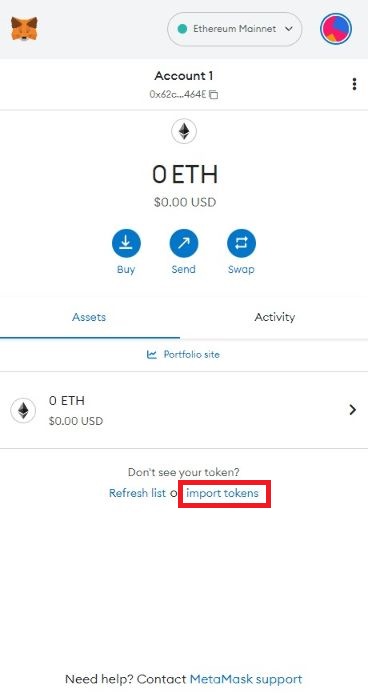 Click "Import Tokens".
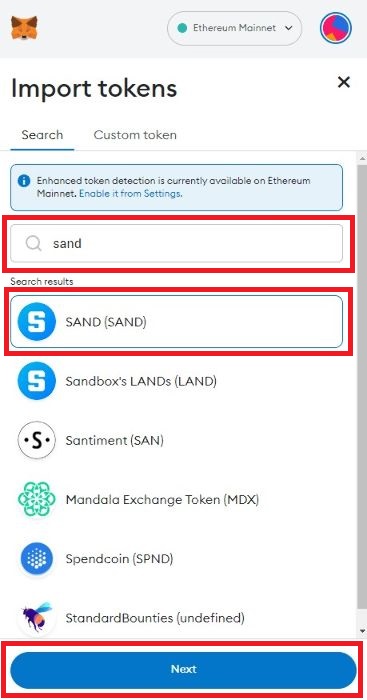 Click in the search bar and search for the required token, select it and click "Next".
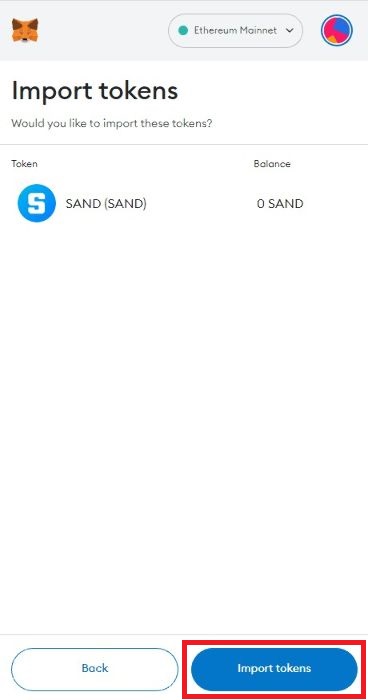 Click "Import Tokens".
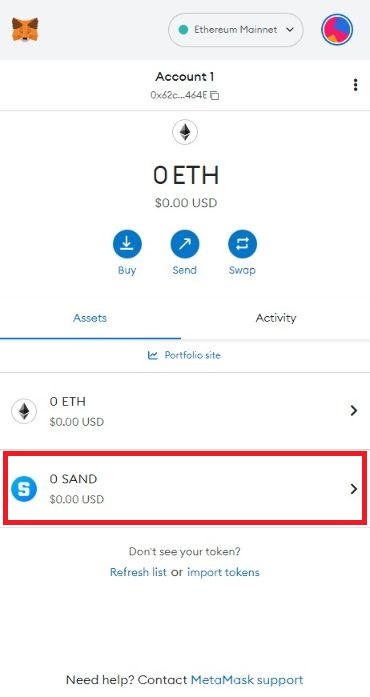 Viola. You will see the token in your wallet.
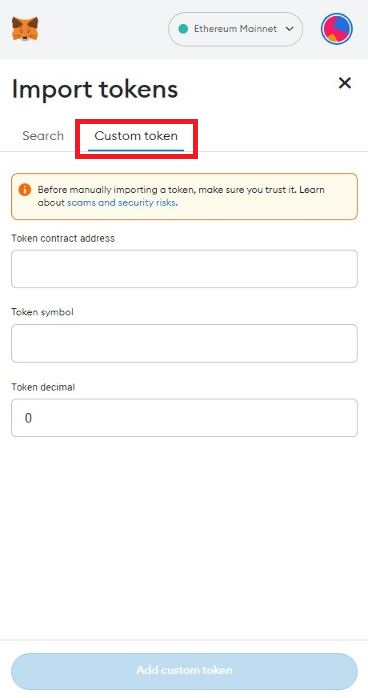 For importing from contract address, after clicking import token click "Custom token".
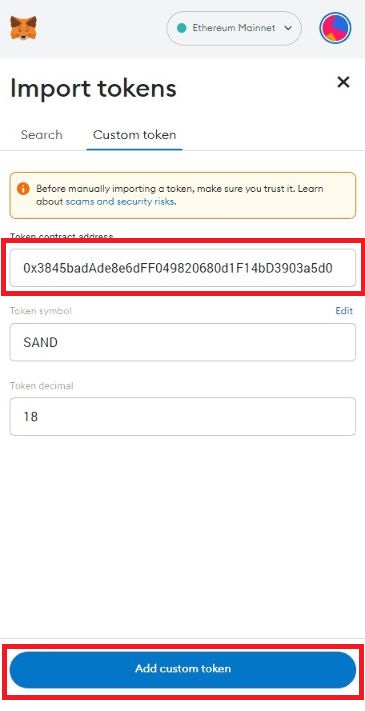 Paste the contract address into the "Token contract address" field. The other fields will automatically populate if it finds it. You can specify these manually if required. Click "Add custom token".
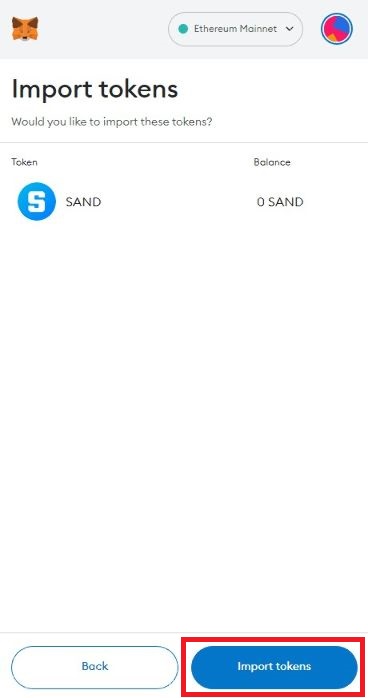 Click "Import tokens".
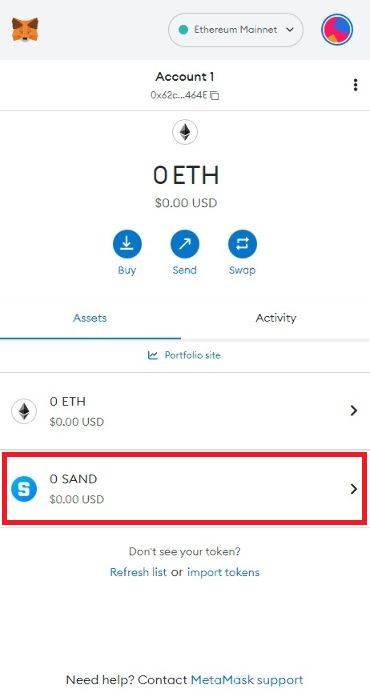 You will now see the token in your wallet.
Things to consider
Always ensure you have a legitimate contract address or token added. Anyone can create smart contracts and tokens.
You can also add NFT's this way so you can view you NFT's in MetaMask but it currently isnt fully supported.
Back to topBack to top