Adding Networks to MetaMask (Smartphone)
On this page... • Overview • Instructions • Things to consider
Overview
By default Metamask is configured and ready to roll on the Ethereum Network (Mainnet). To use different networks you need to add them to Metamask.
Metamask now lists common networks so adding these is simple. If you wish to add a network not listed it consists of adding a few settings per network and knowing how to switch between them.
Thankfully this is pretty painless. Follow the below guide.
Back to topInstructions
The below guide shows how to add networks on a smartphone app. Open the app and log in to start.
I have used Fantom Opera network in the below example but you will see others listed so feel free to add which ever you require.
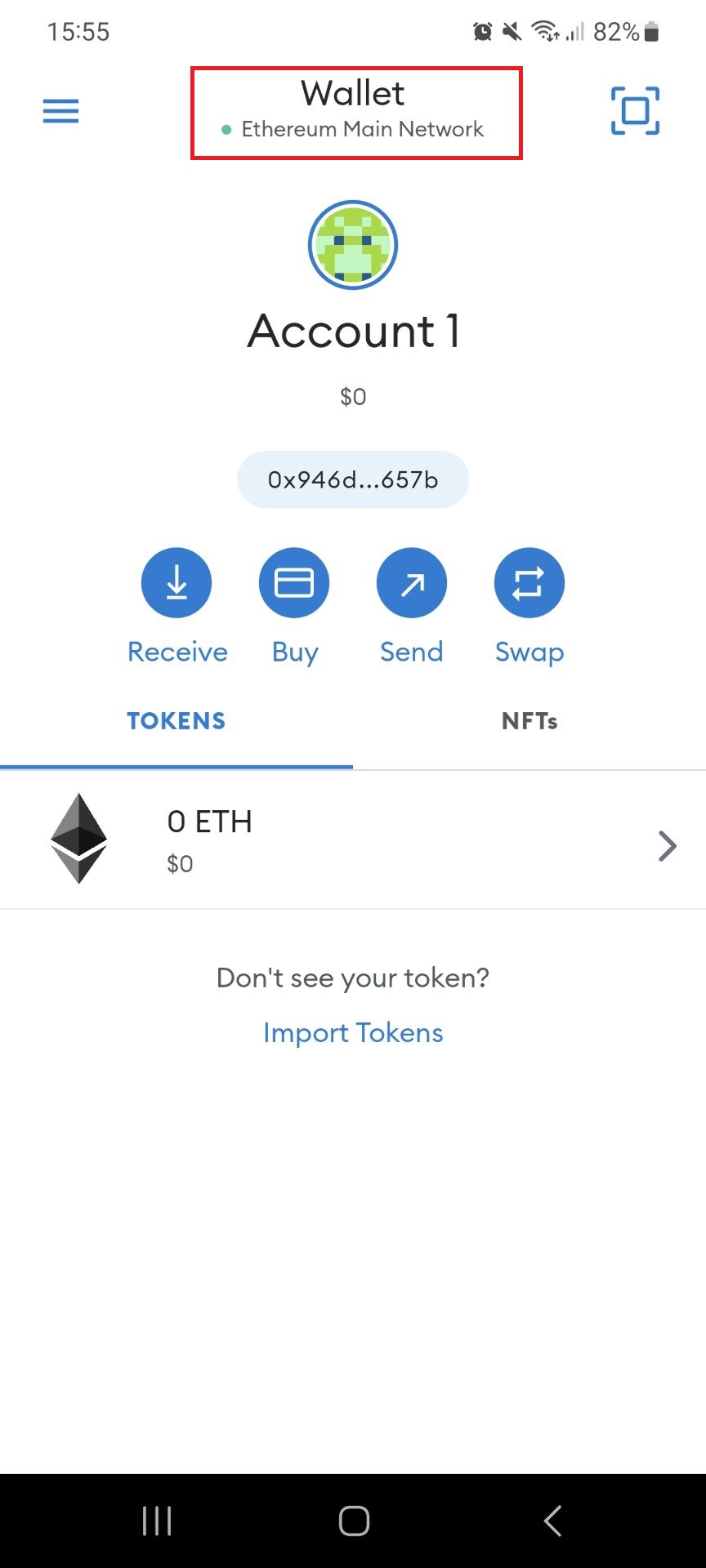 Click "Wallet" at the top of the screen.
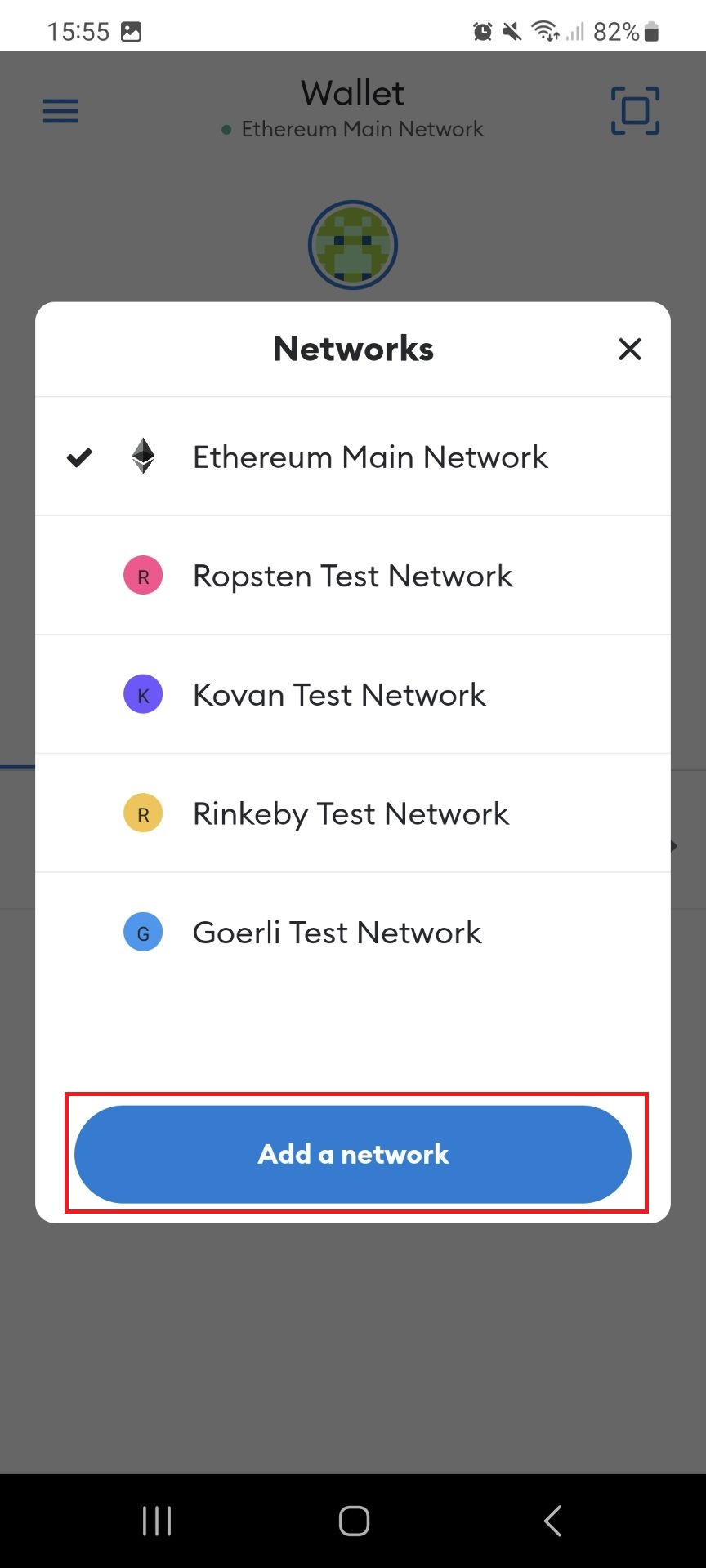 Click "ADD a network". (The other networks listed here are Ethereum test networks.)
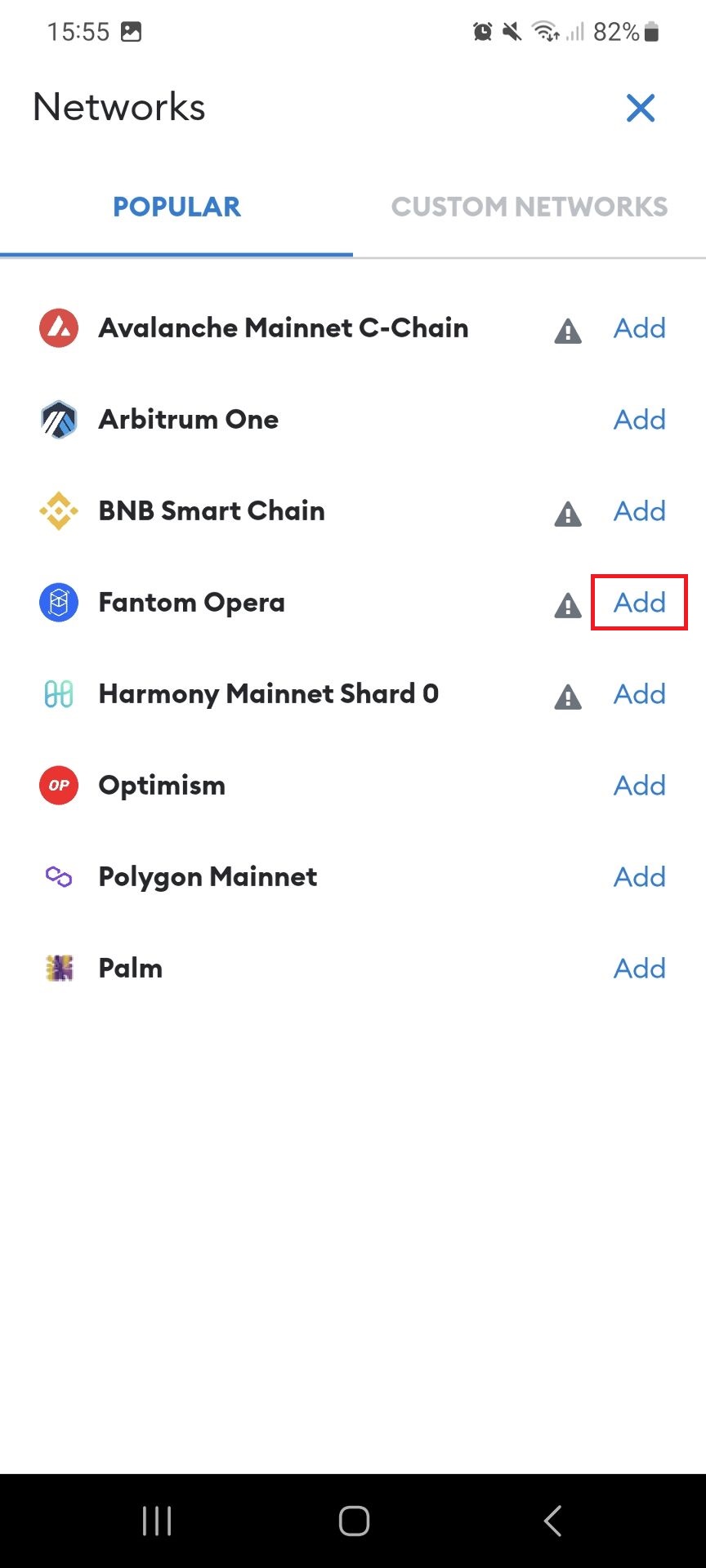 The list that is displayed are provided by Metamask to add. Click "Add" on whichever you require.
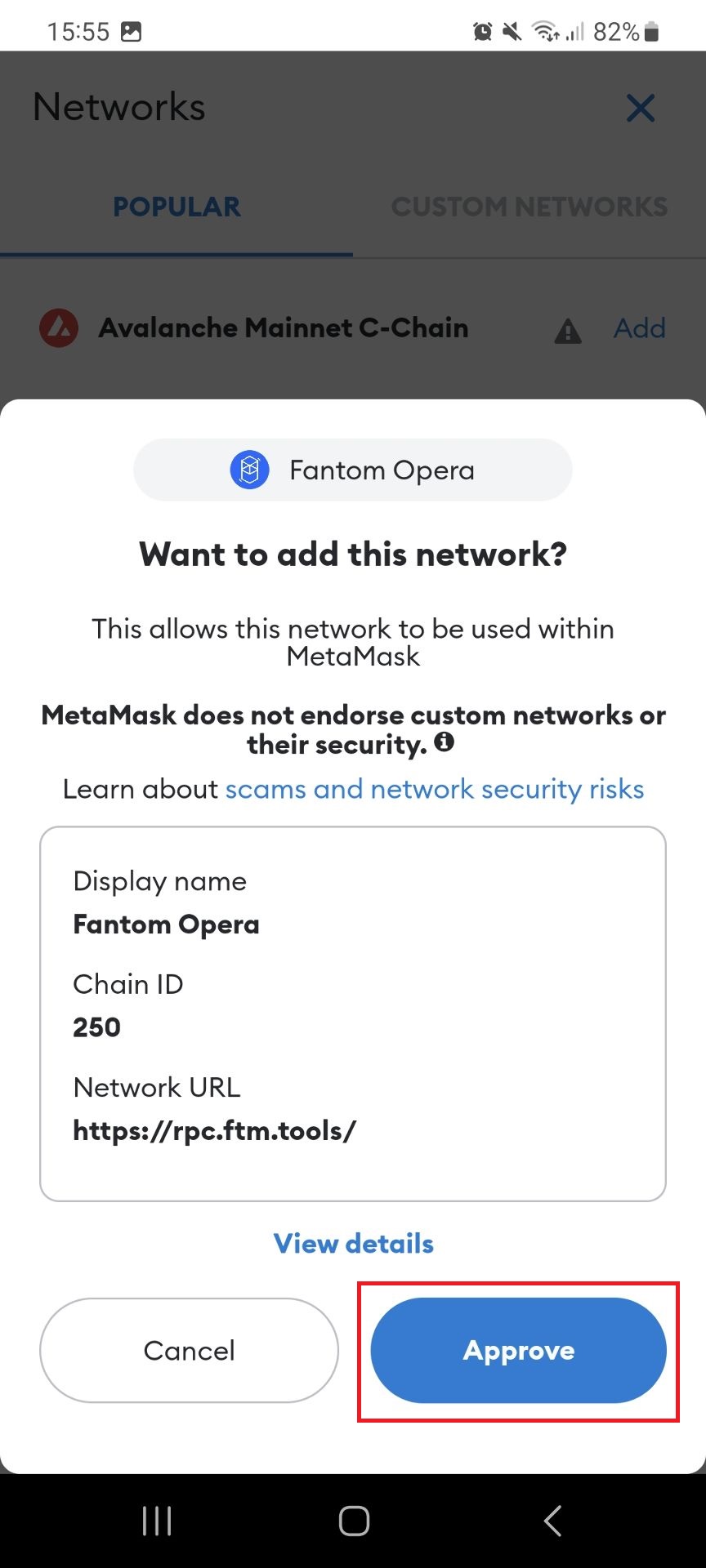 You will get a confirmation window show up to confirm. Click "Approve".
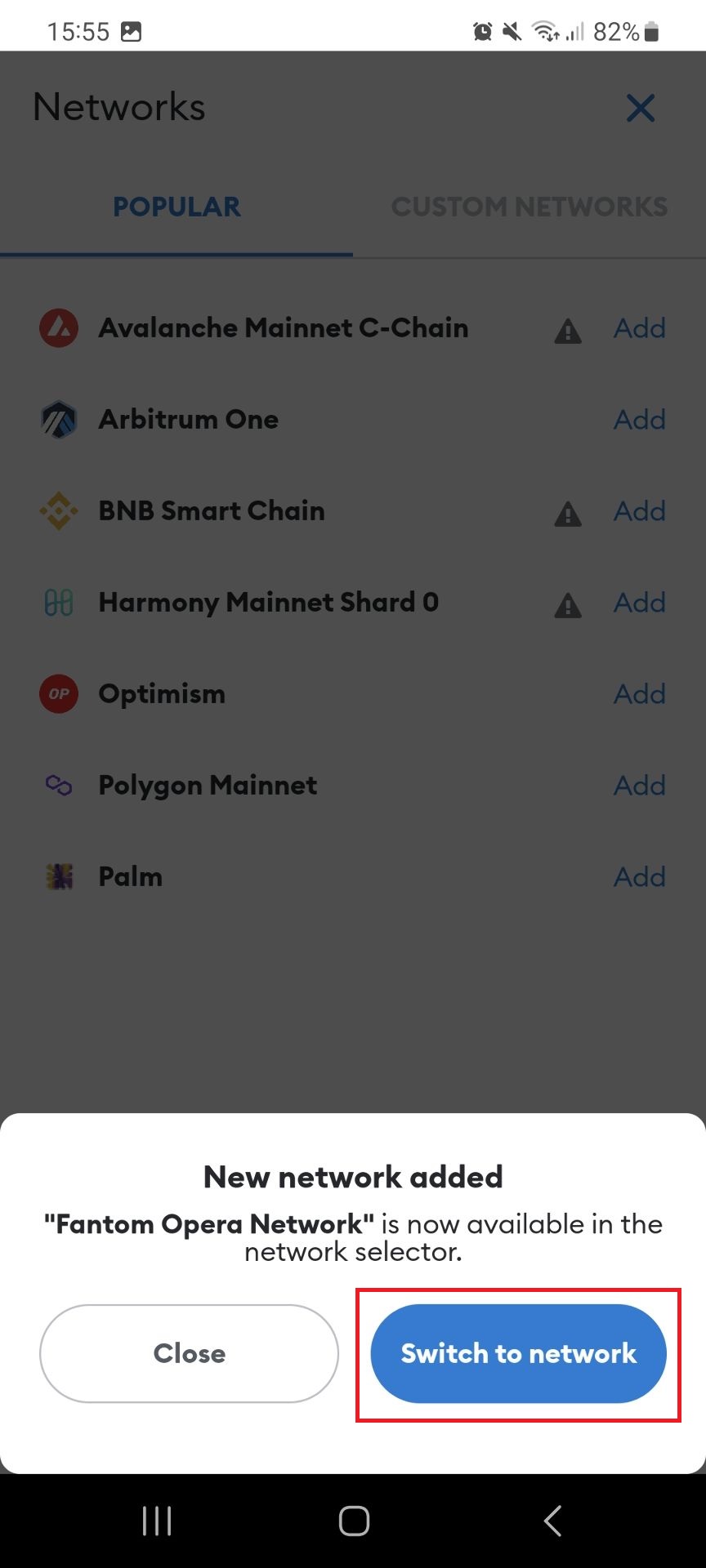 The next pop-up is just to confirm you have added the network and asks if you wish to switch to it. Click "Switch to Fantom Opera"
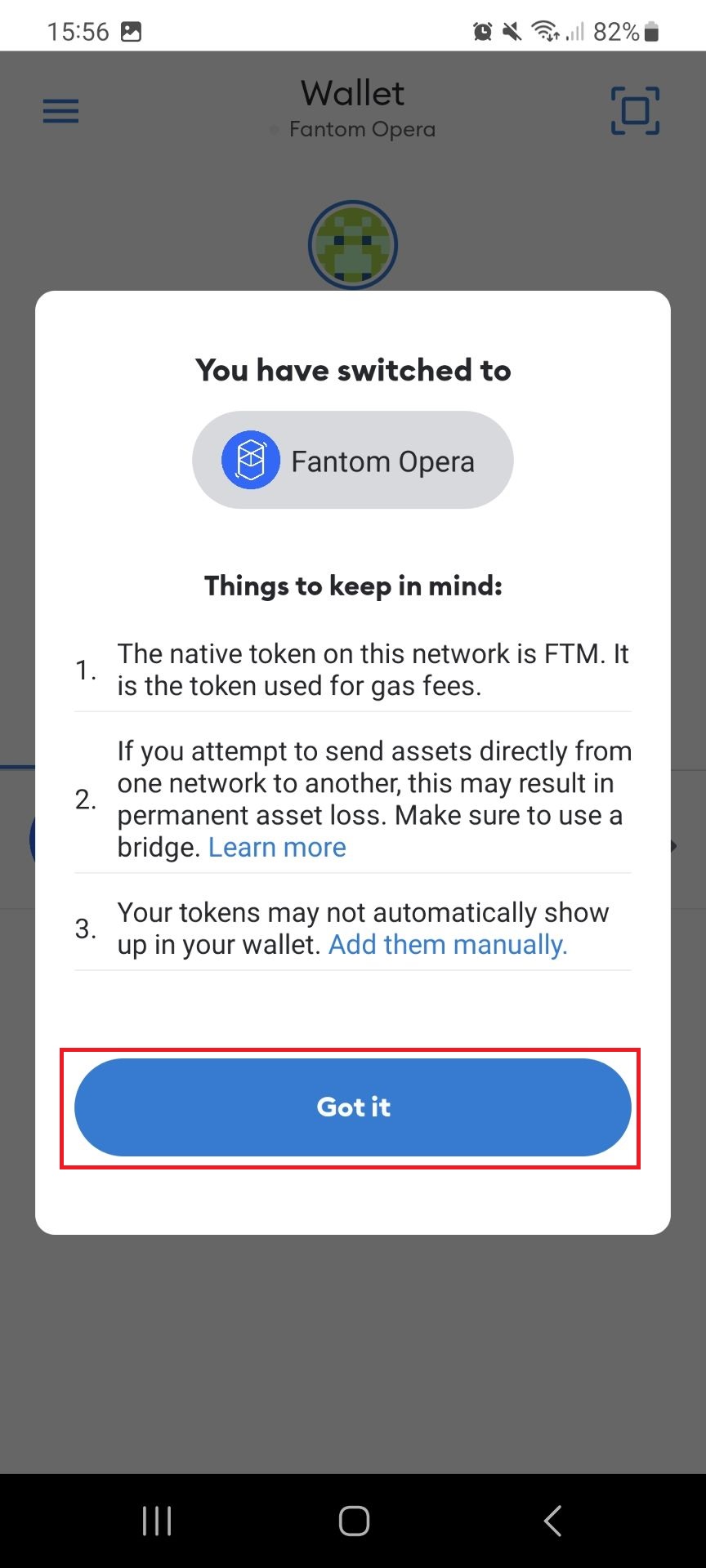 You may get a pop-up giving some general advice on the network, just as the native token and general security details. Click "Got it".
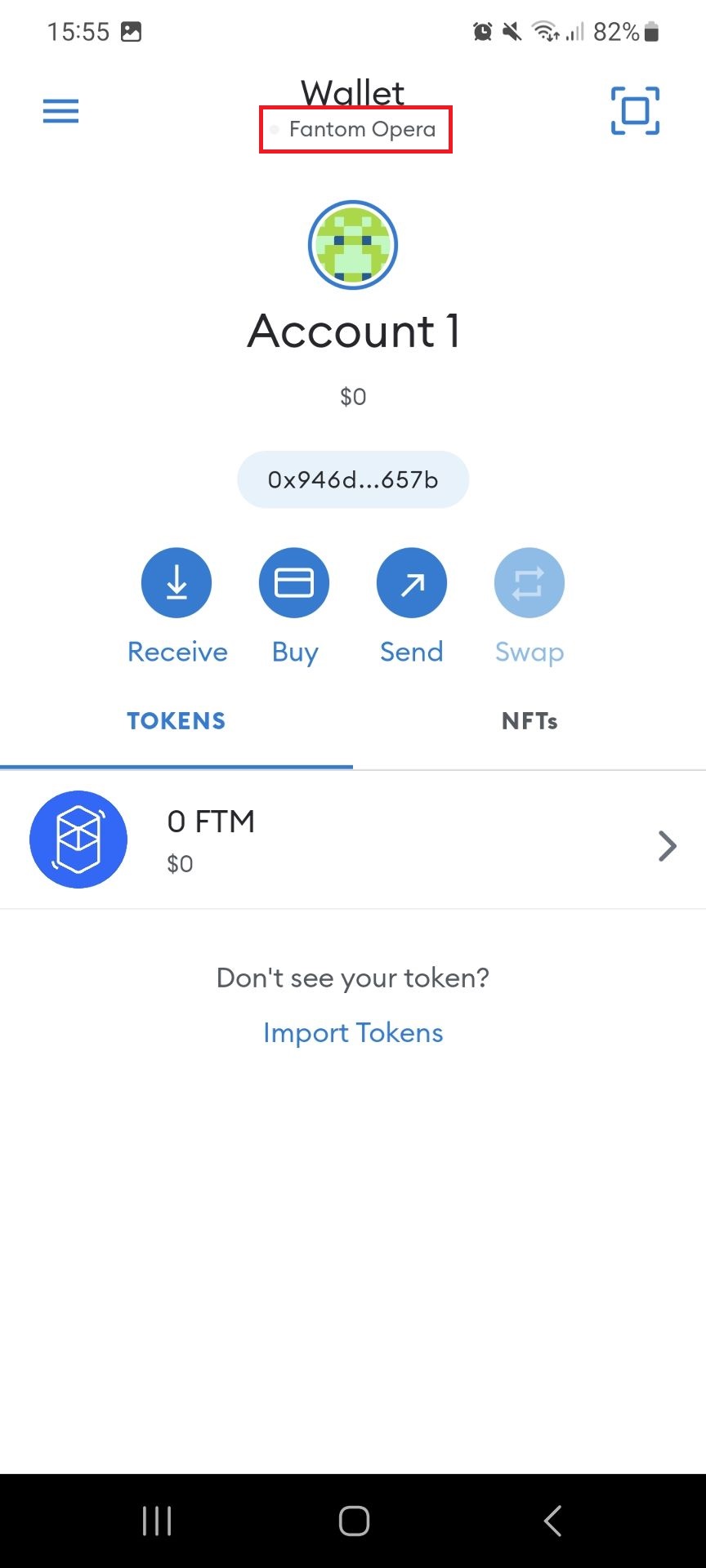 If you look at the top of the screen you will see it now says "Fantom Opera". Well done, you have added your first network.
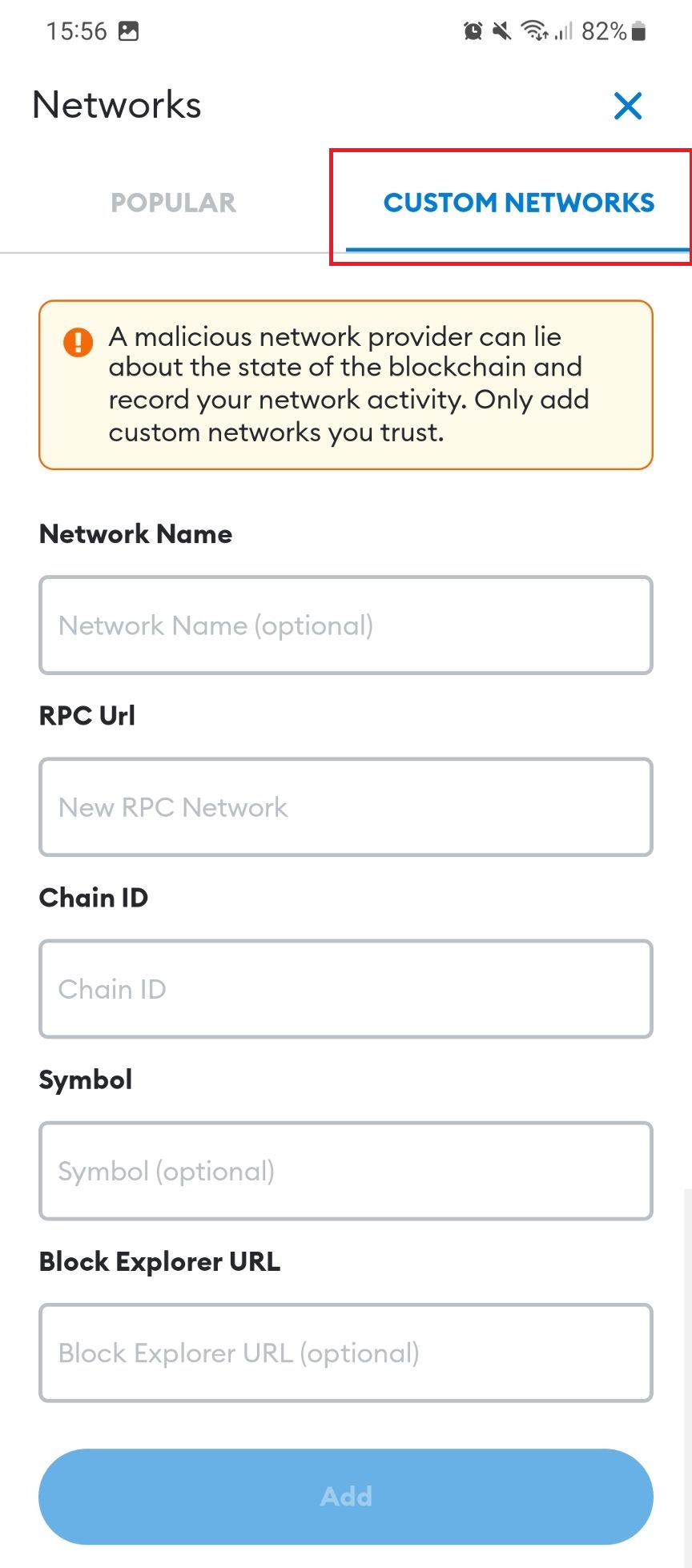 To manually add a network not listed follow the instructions above but click "CUSTOM NETWOKRS" once at this screen.
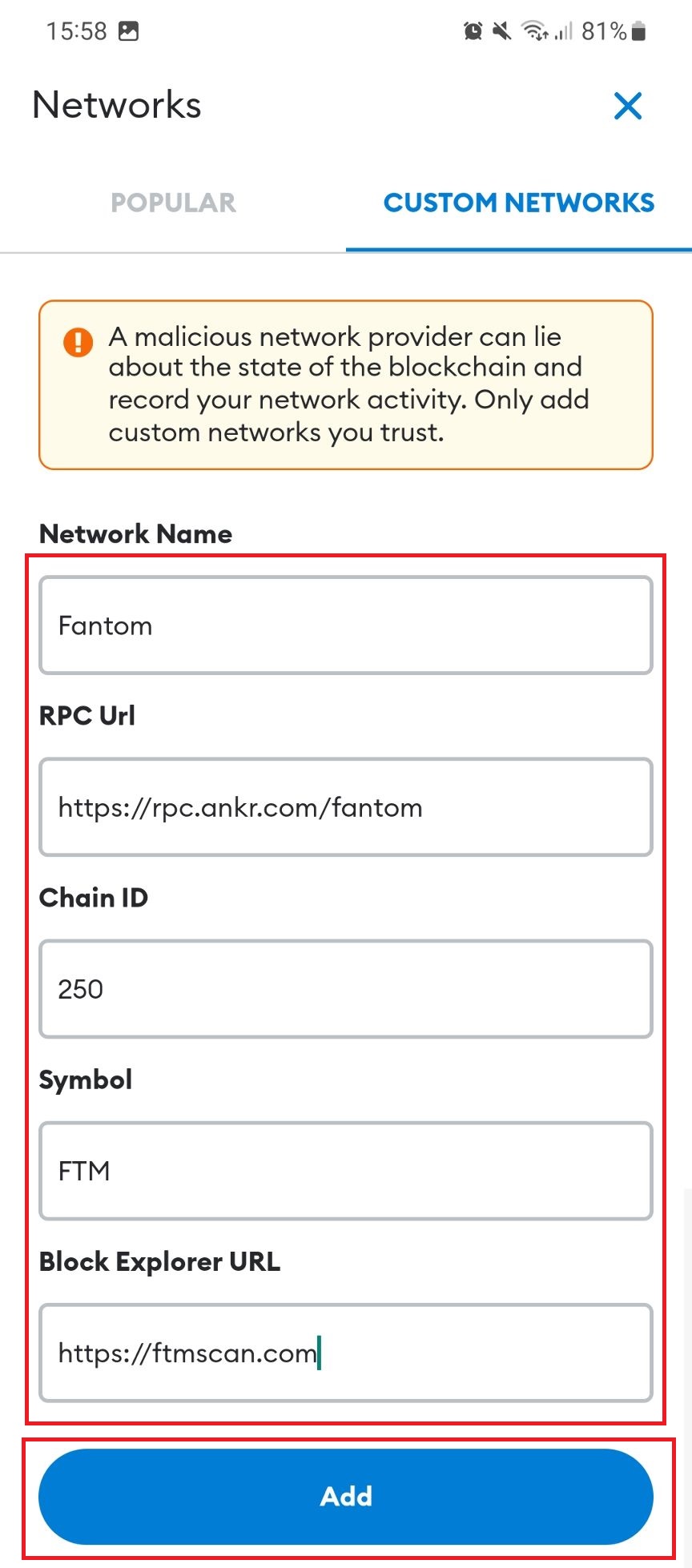 You will be presented with a screen where you need to provide the details of the chain. You can find these online by searching.
Also get these details from a reputable source. Here is an example of the settings for Fantom Opera taken from the Fantom foundation website. Click "Add"
You will be presented with a screen where you need to provide the details of the chain. You can find these online by searching.
Also get these details from a reputable source. Here is an example of the settings for Fantom Opera taken from the Fantom foundation website. Click "Add"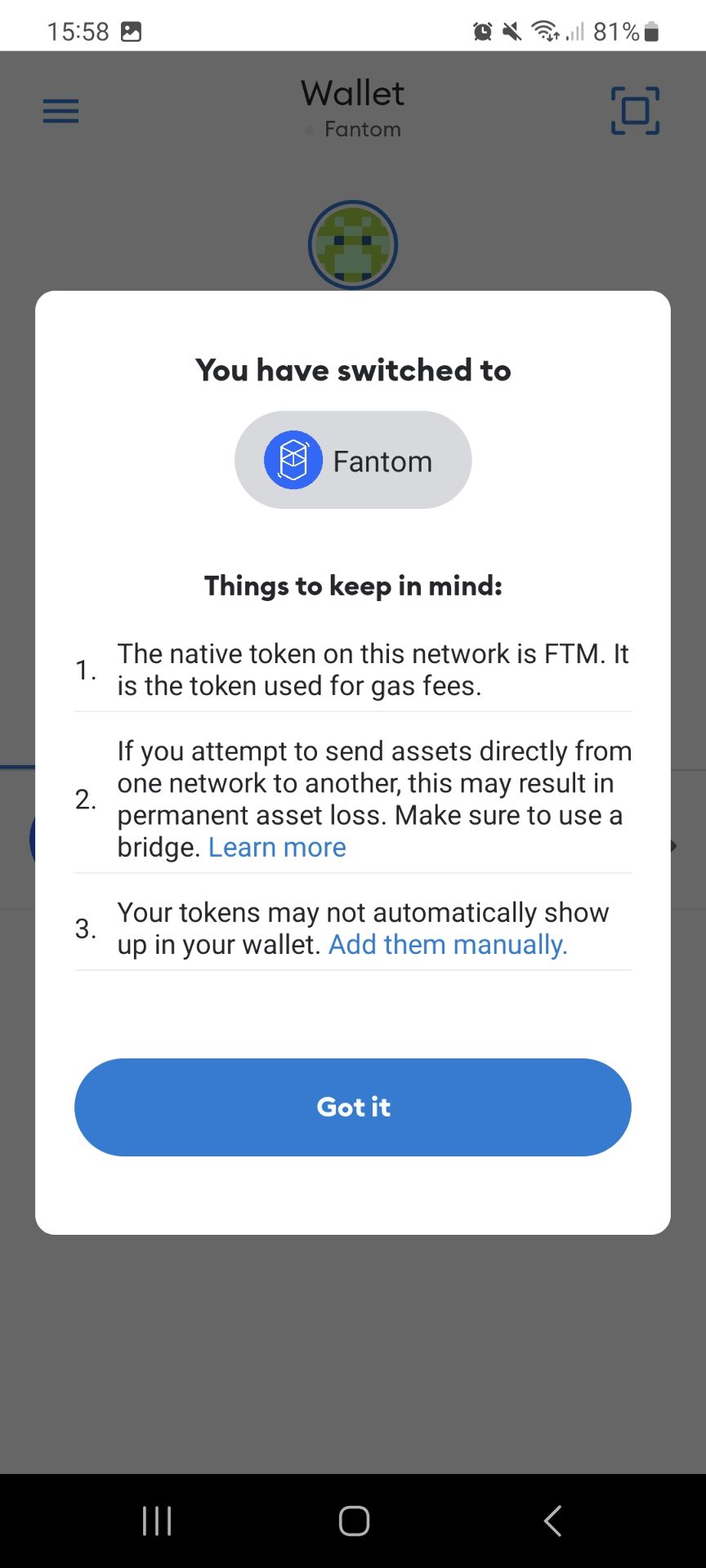 You will then get a confirmation window. Viola.
Things to consider
Adding a network is a potential security risk. Adding a network manually and putting in settings from a scammer could potentially give them access to your wallet and its contents
Sometimes the RPC (Remote Procedure Call) can get compromised. You can keep an eye out for warnings on social media and alike. Do not use your wallet to interact with any blockchain in this instance and wait for confirmation any issues are resolved. Sometime if the network seems slow this could be a warning sign
Different networks cost different fees and transaction times can vary.
To switch between networks you simply click on the name of the current network you are on and click the network you wish to change to.
Back to topBack to top