Set up Metamask (Smartphone)
On this page... • Notes / Limitations of smartphone use • Instructions • Video • Navigating your wallet
Notes / Limitations of smartphone use
Not all projects and examples used on this site are compatible with the MetaMask mobile app. This is because you have to use the browser (see Navigating your wallet below) within the app and this has its limitations. If something doesnt appear to be working correctly through the browser then it probably isnt, and you will need to use a desktop computer for full use. Some work for the most part though (such as fantomon).
There are some projects that only have apps created for Windows/Mac and the only way to currently access these is through a desktop PC. Most of these projects aim to have mobile applications in the future but currently this is limited.
For these reasons all the guides after setting up the mobile app will be taken from a web browser.
Back to topInstruction (mobile / cell)
Download MetaMask.


Follow the below instructions to set up wallet.
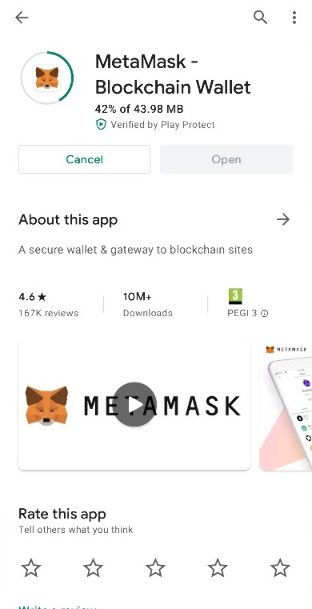 Install Metamask and open app.
 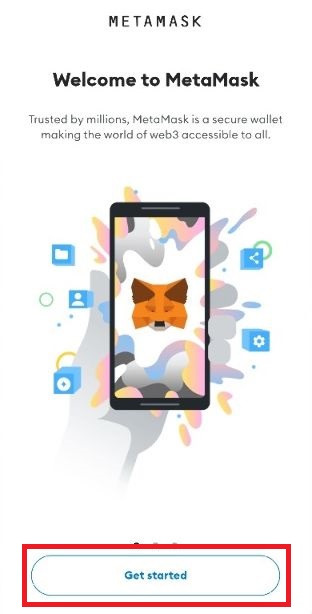 Click get started.
 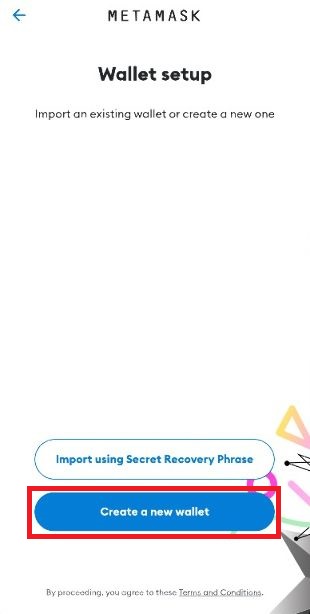 Click 'Create a new wallet".
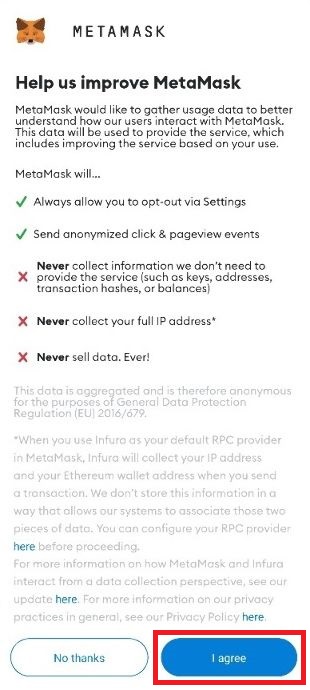 Scroll down and click "I agree".
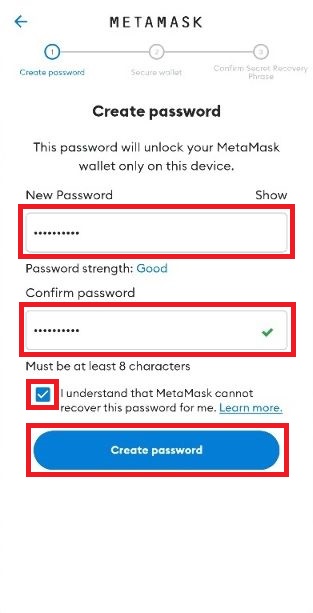 Set up a new password, confirm password and agree to metamask not recovering passwords. Click "Create password".
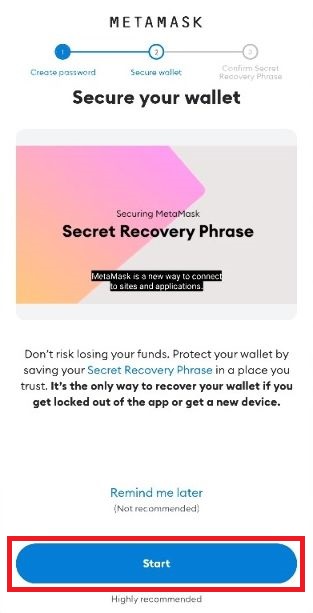 Click "Start".
 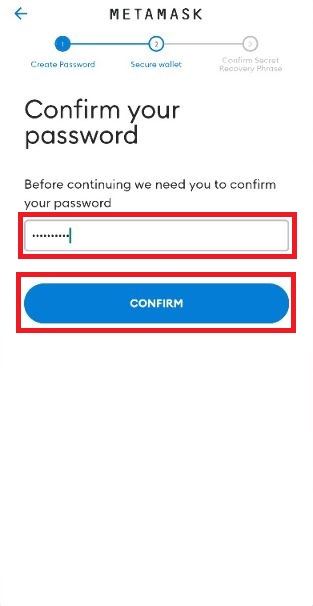 Confirm password from above. Phone may also prompt for biometrics if turned on.
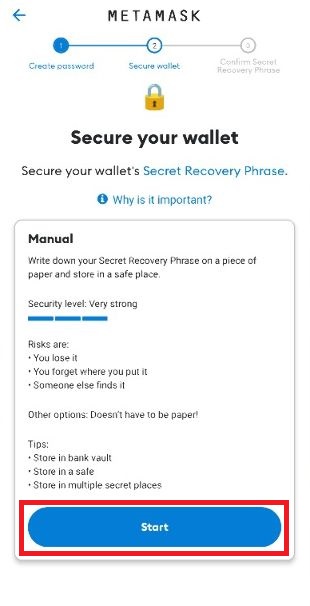 Click "Start".
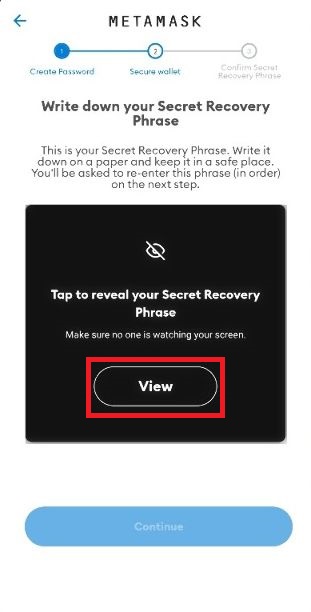 Click View.
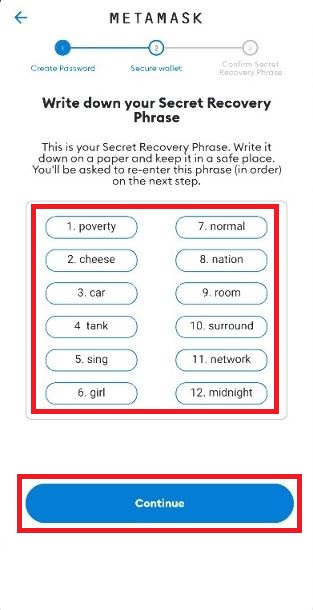 Make a note of all 12 words. IMPORTANT: Do not lose these. You can recover your wallet with these. If you lose them you could loose everything in your wallet!
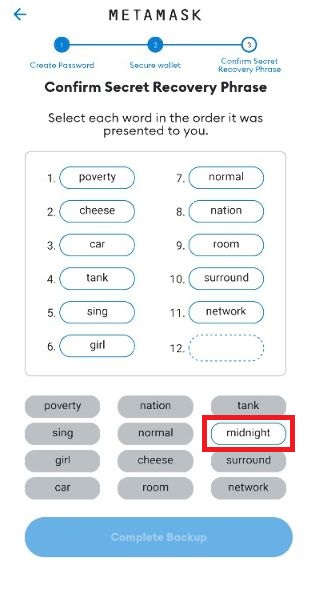 Enter all the words in order to confirm you have made a record of the words.
 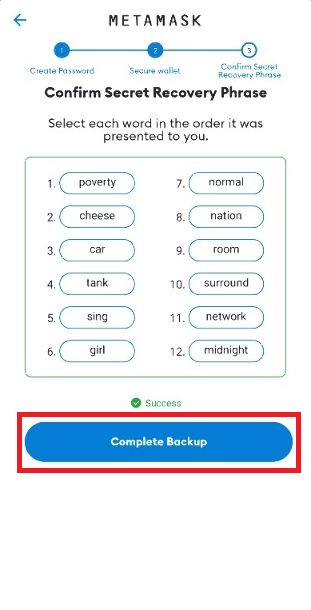 Click "Create Backup.
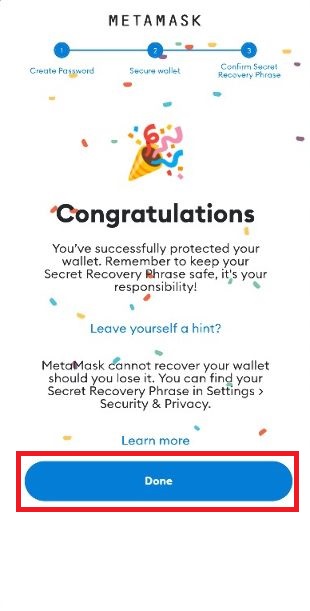 Your wallet is now set up. Congratulations. Click 'Done"'
 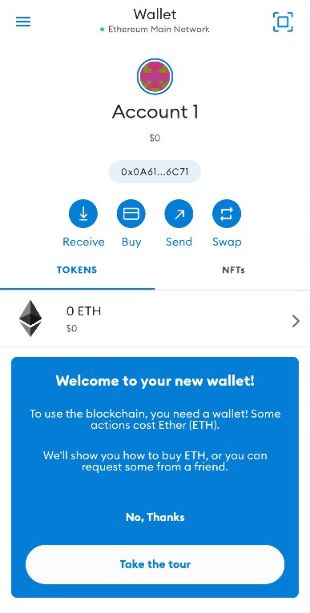 Click "Take the tour" for a quick rundown on whats what.
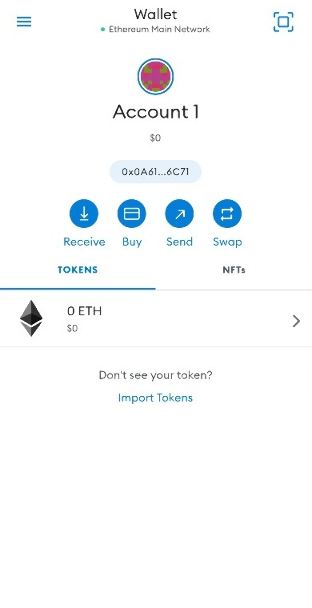 Wallet is Read to use.
 See below to navigate around your wallet.
Back to topVideo
Back to topNavigating your wallet
Below shows an overview of your wallet and things you can do
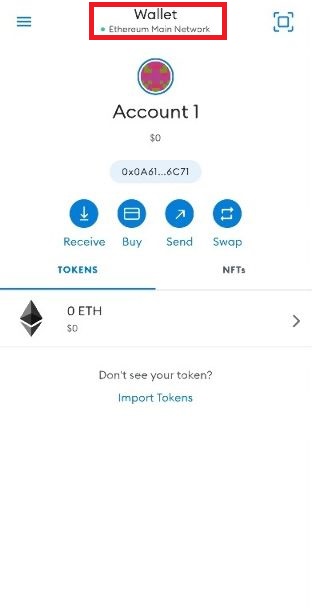 This shows you the network you are currently on, click it to switch between networks.
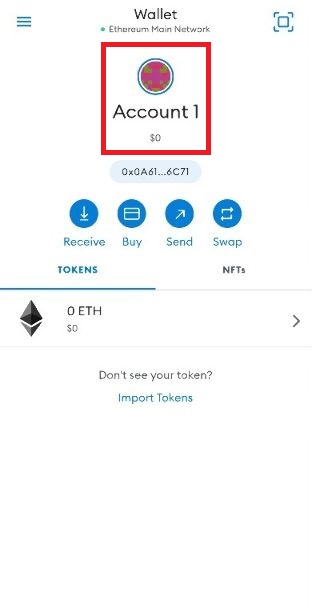 This shows the current account you are on and the balance of that account. One 'private key' can have multiple public address, each one a different account. So you can create multiple accounts using one 12 seed phrase and it will restore all the wallets associated. (See Learning). You can customise account names as you please buy long holding on the name. You can switch between accounts by clicking on the icon above the account name.
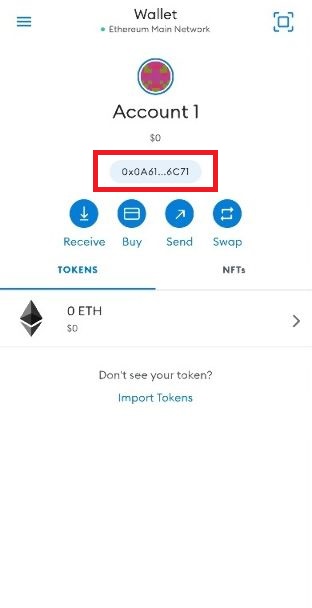 This is your public address. This is the address you can give people to send funds/tokens/NFT's to this wallet. Clicking it will copy it to the clipboard.
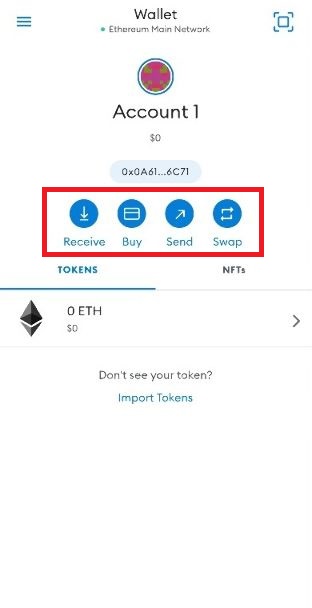 Receive - This gives you ways to share you address for receive funds from others Buy - Buy some tokens direct into your wallet using bank transfers or card.Send - Send tokens between your own wallets or to another.Swap - Only available on ETH. Swap tokens for one another.
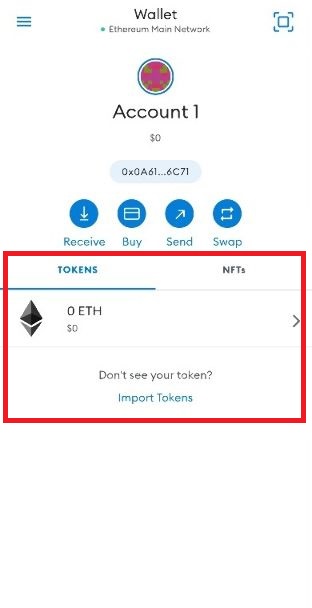 These are the current assets in this wallet. Note the NFT's dont work that well, view them on a marketplace or alike. Also if you dont see all your tokens you need to import the Token contract into your MetaMask. (See Learning).
 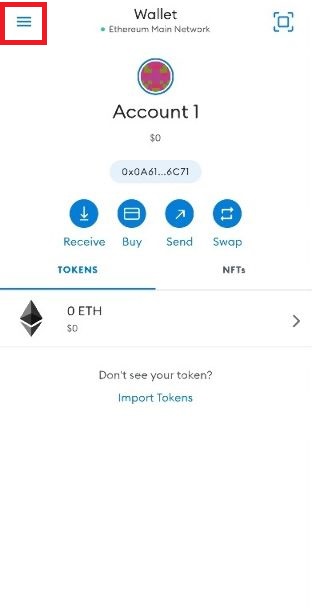 Click the 'hamburger' menu for more...
 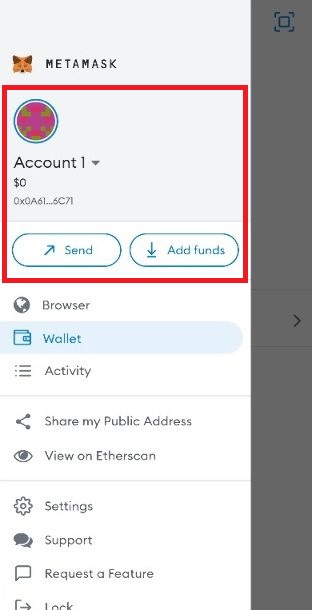 The top of this menu shows the same information as before.
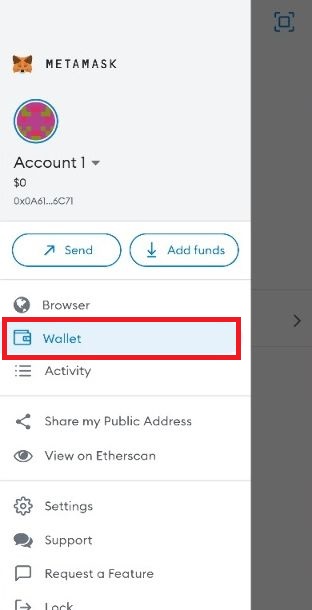 Wallet takes you back to your wallet.
 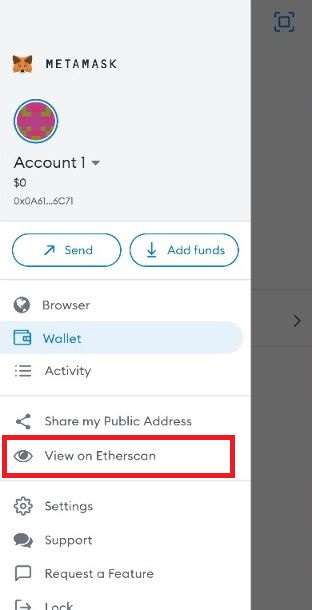 "View on Etherscan" will show your wallet on etherscan.io. This shows all information on the blockchain. (See Learning).
 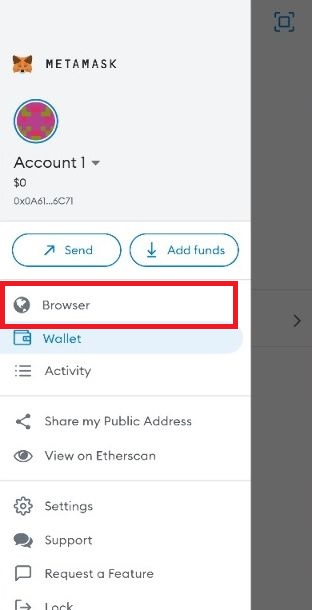 Click on browser...
 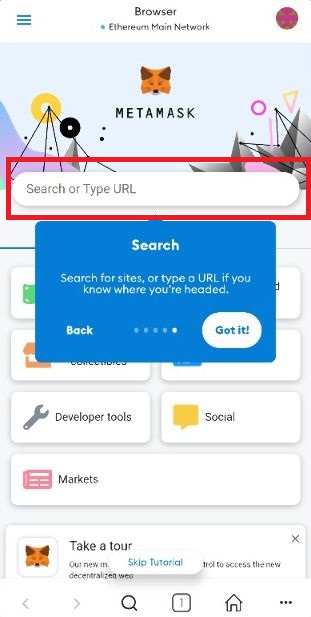 This is the MetaMask web browser. To use your wallet to interact with web3 sites you have to use this. You can either search or type the URL into the box. Any interactions with a blockchain will prompt metamask for you to authorise.
Back to top