Adding Funds to your wallet (Smart Device)
On this page... • Overview • Instructions • Things to consider
Overview
This page shows how to get funds from a bank account into your wallet.
Lets be clear. This means cold hard cash (FIAT - see more on the learning pages) that you have no doubt earnt in an honest way and you will convert it into a crypto coin/token and then transfer into your wallet.
This website is just a guide on how to do it. Thats it, nothing more. Please dont risk anything.
Read the disclaimer pages before proceeding.
The process involves signing up for an exchange, verifying who you are with ID, and adding your bank details. If you are uncomfortable with any of these then you shouldnt proceed.
I have used Binance as the guide below just because its the one I use.
There are many other exchanges you can use and other methods, such as adding funds direct through a wallet. I have shown how to buy direct with a card below.
Back to topInstructions
Download Binance.


You will need to sign up for a Binance account. This is the same procedure as signing up for anything; providing address details and proof of ID in some countries. Once signed up follow the below to get funds into your wallet.
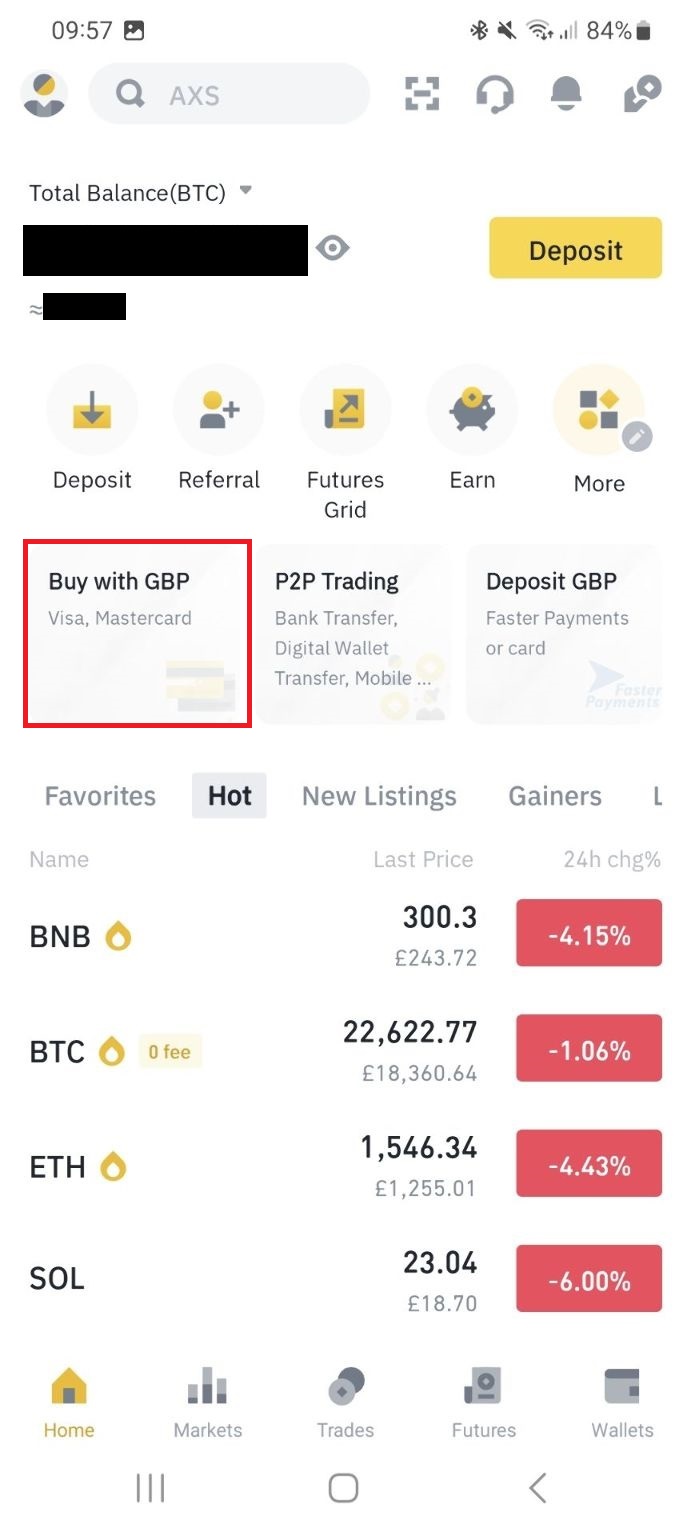 On the opening screen click "Buy with XXX" depending on your local currency.
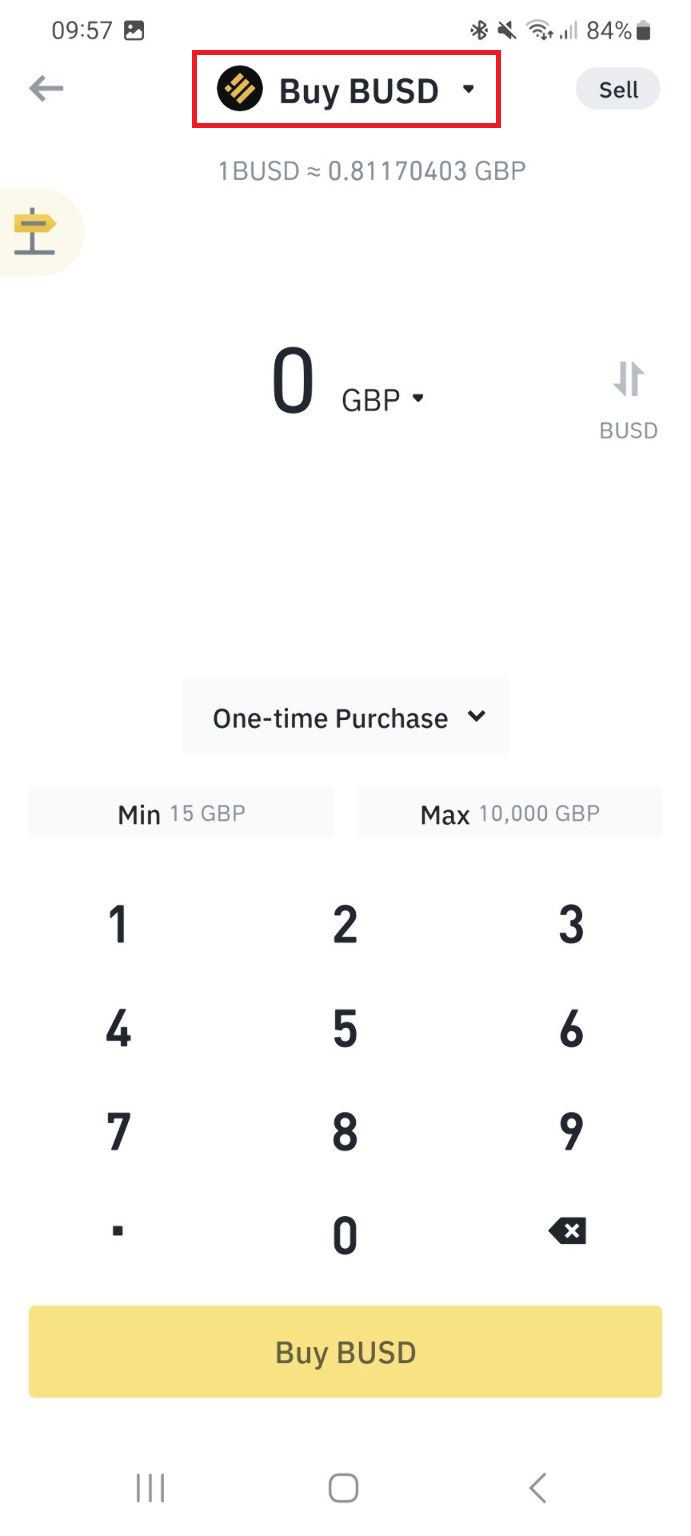 Click the drop down bar at the top. Its says "Buy BUSD" in this screen shot but may vary.
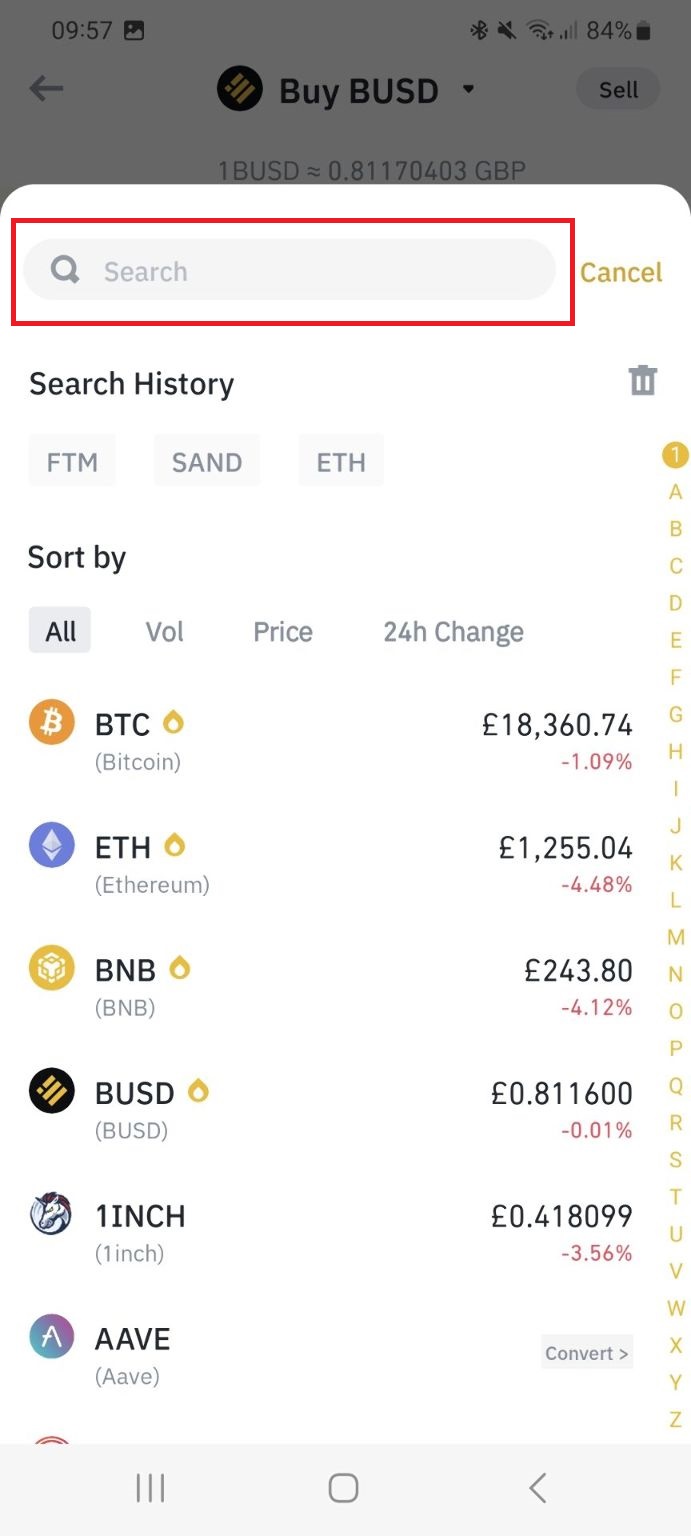 Click in the search bar and search for the coin/token you wish to purchase. Im using Fantom (FTM) in this example.
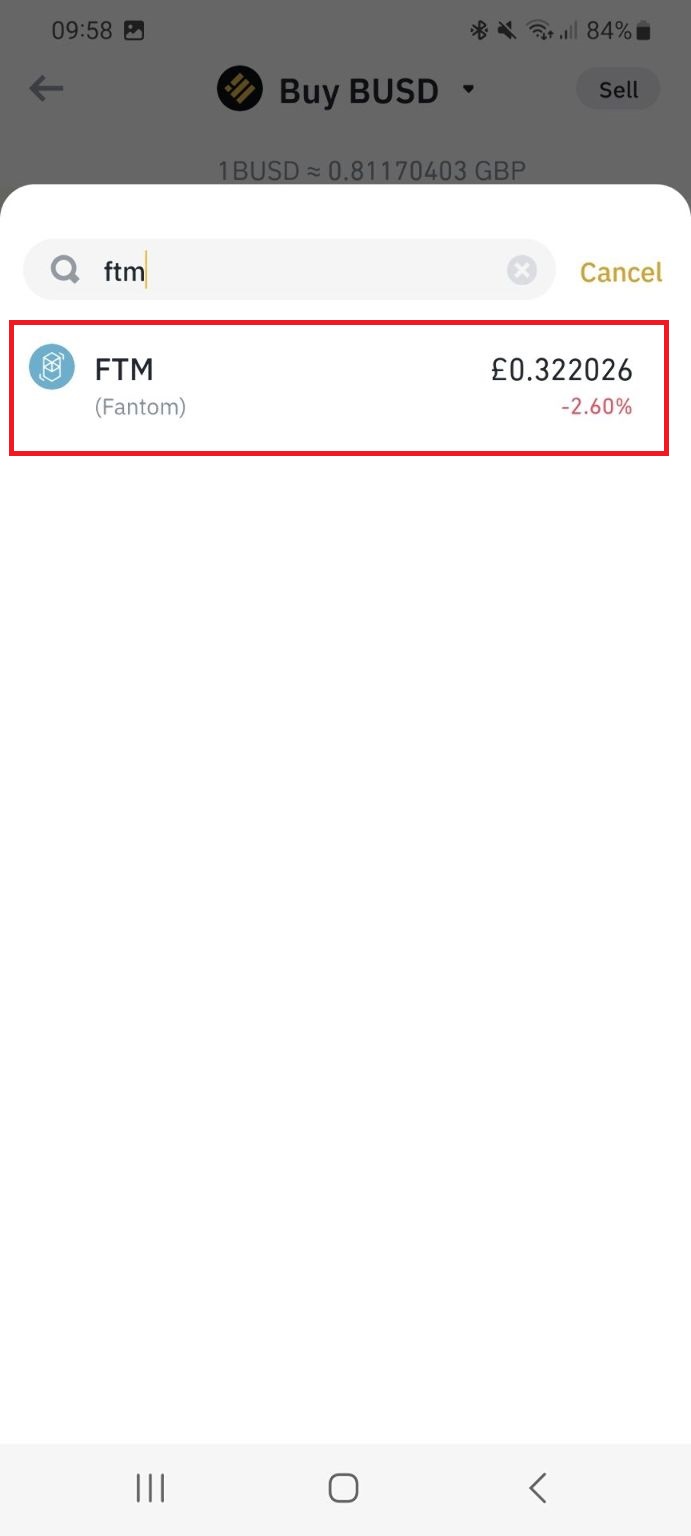 Click on the coin you want to buy.
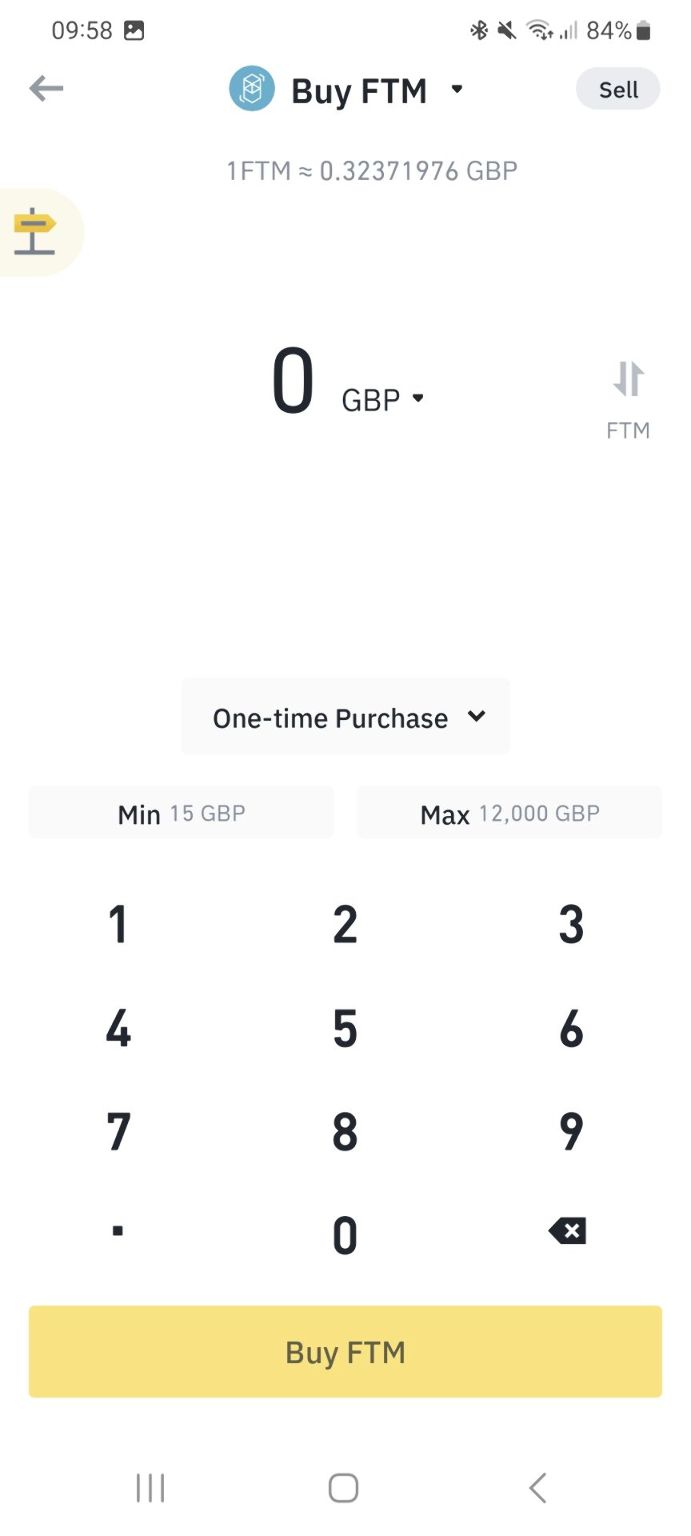 The next screen will show you the current price and the min and max you can buy.
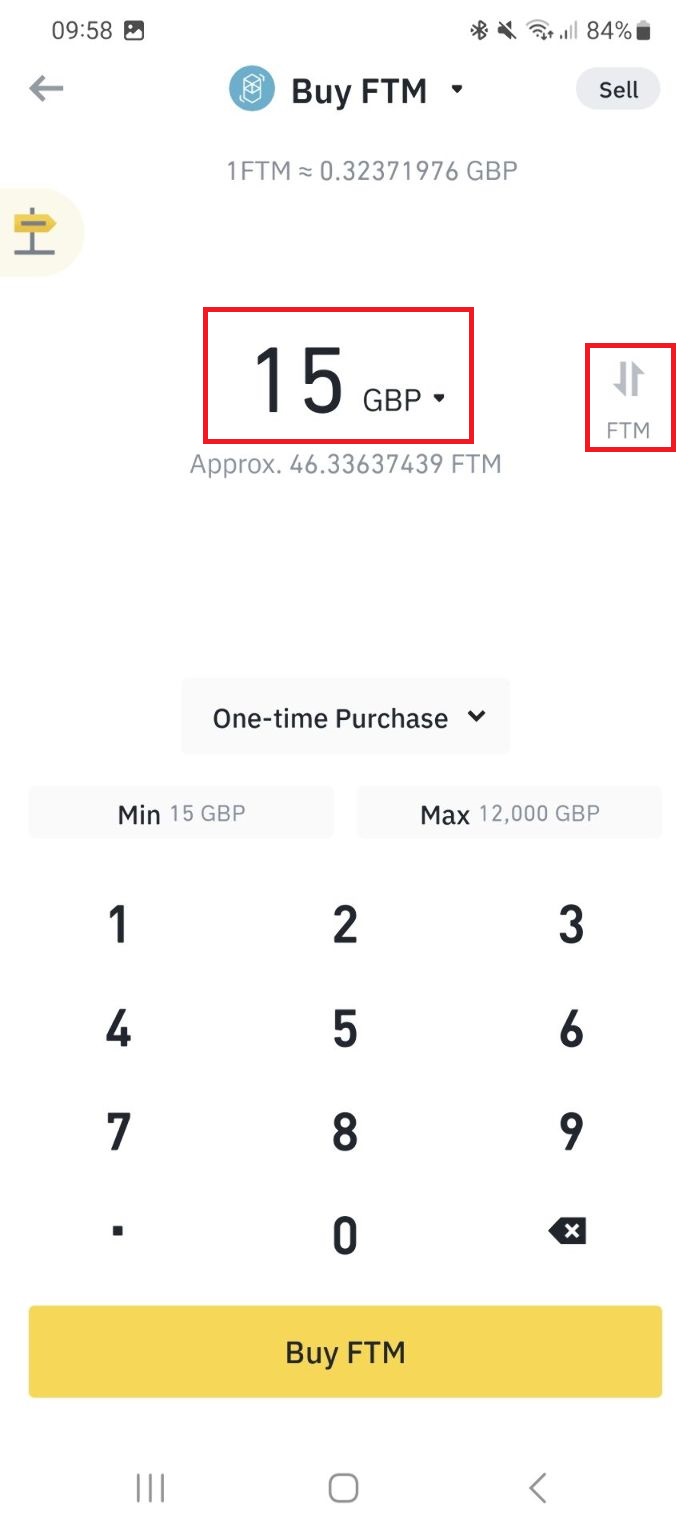 Type in the amount you wish to buy in your local currency. You can click the small arrows to the right of the value if you want to specify the quantity of the coin/token you want if you wish.
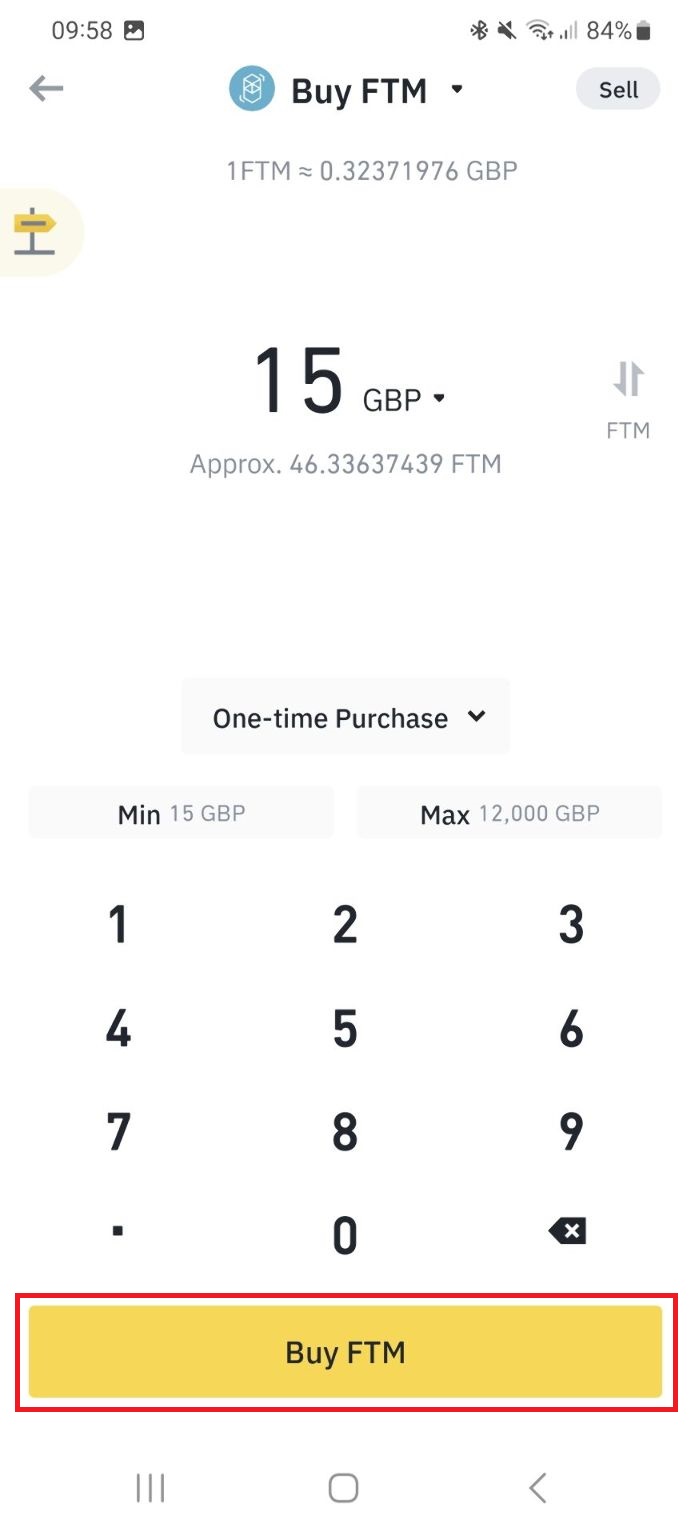 Once you are happy click "Buy XXX".
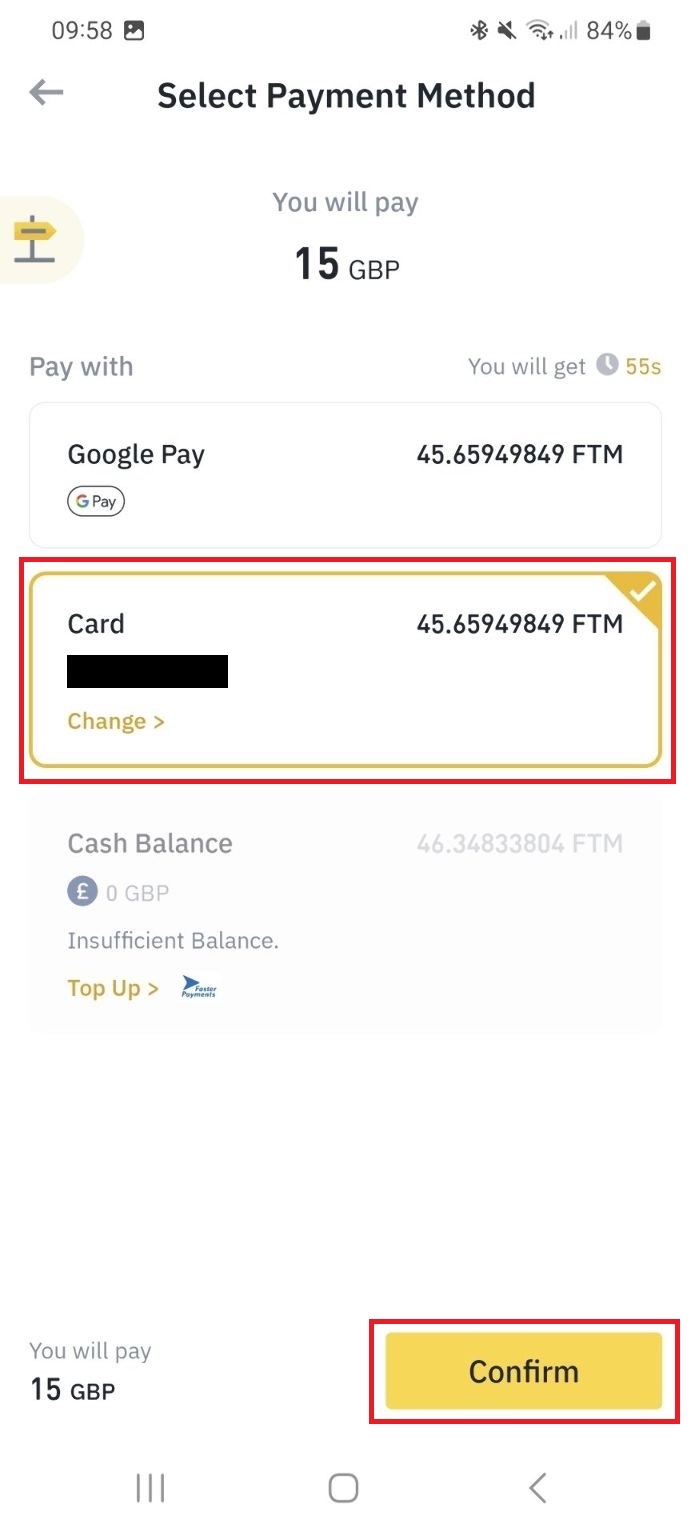 Select your payment method and click "Confirm". Im using a direct card payment in this example.
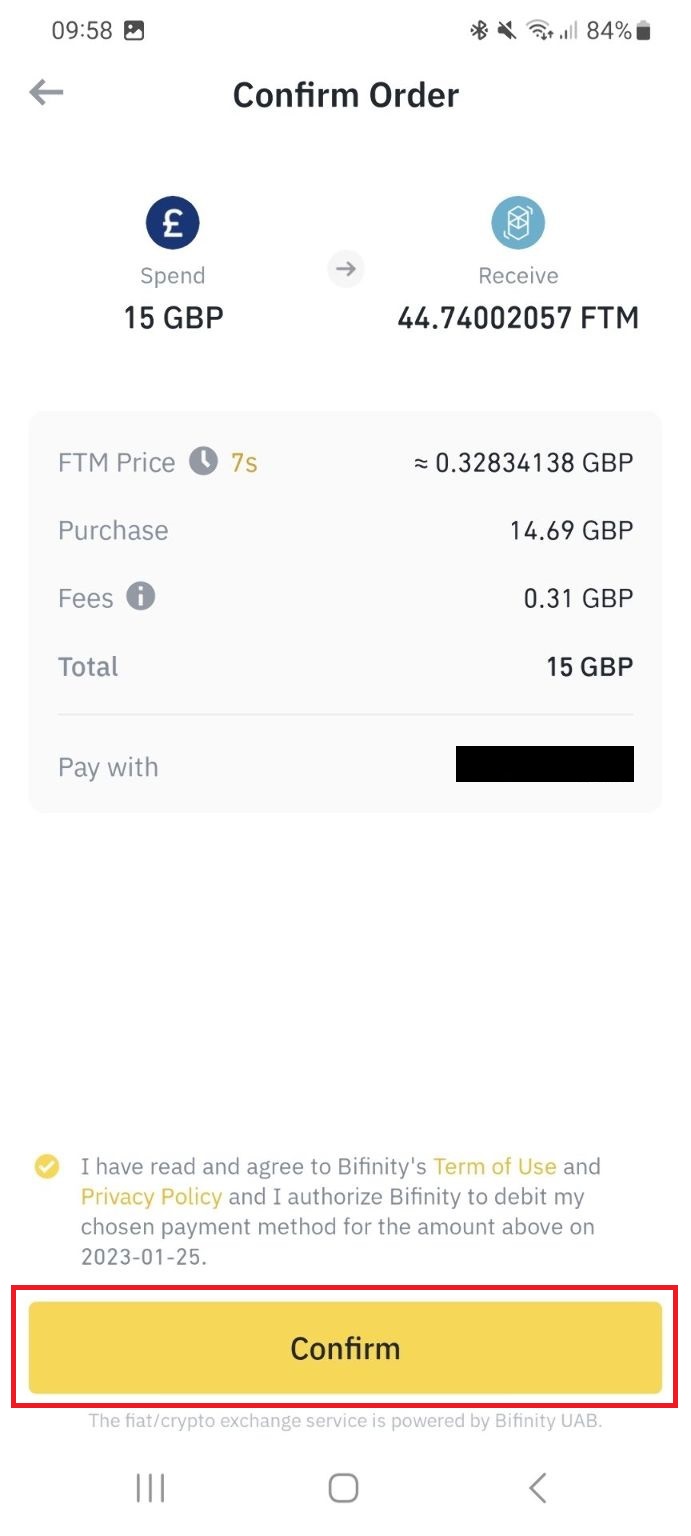 You will then get another confirmation screen. You have 10 seconds to confirm you want to proceed. Click "Confirm".
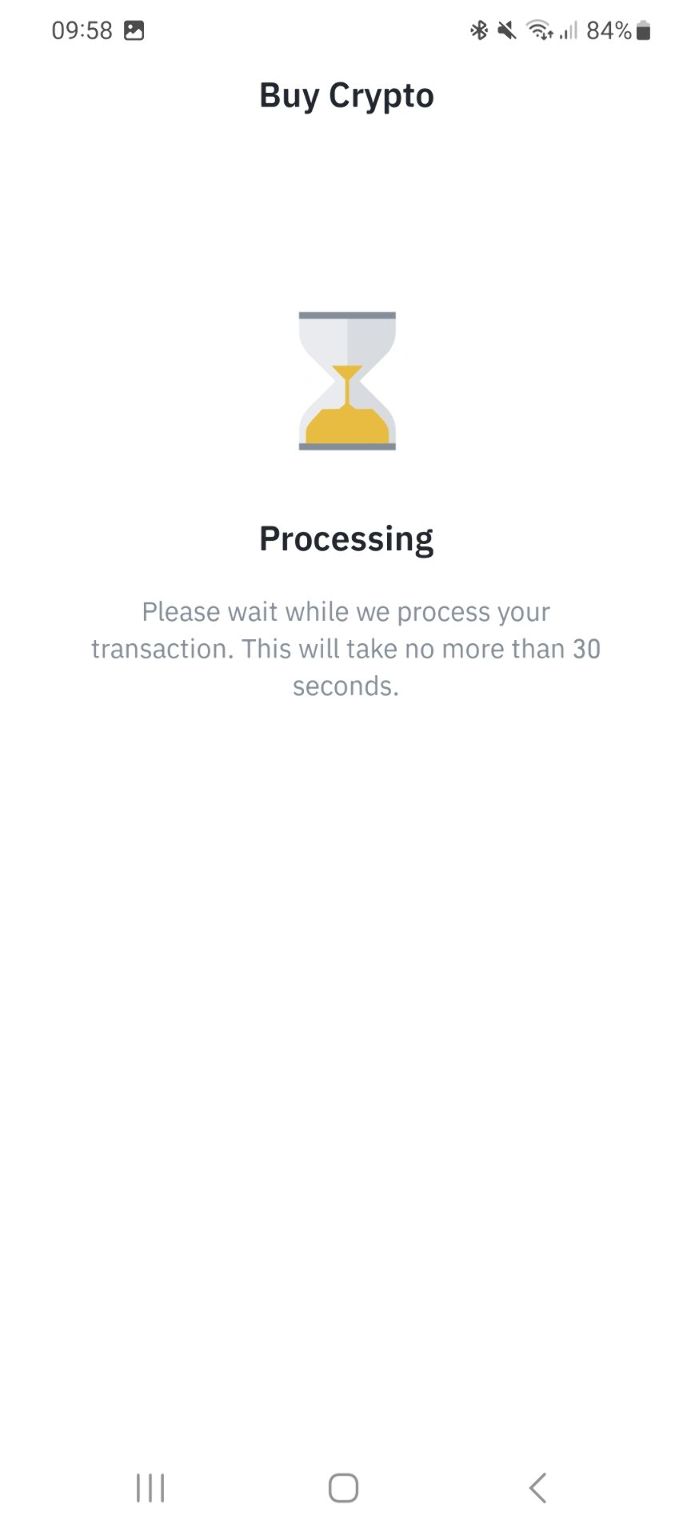 The transaction will take a few seconds to go through...
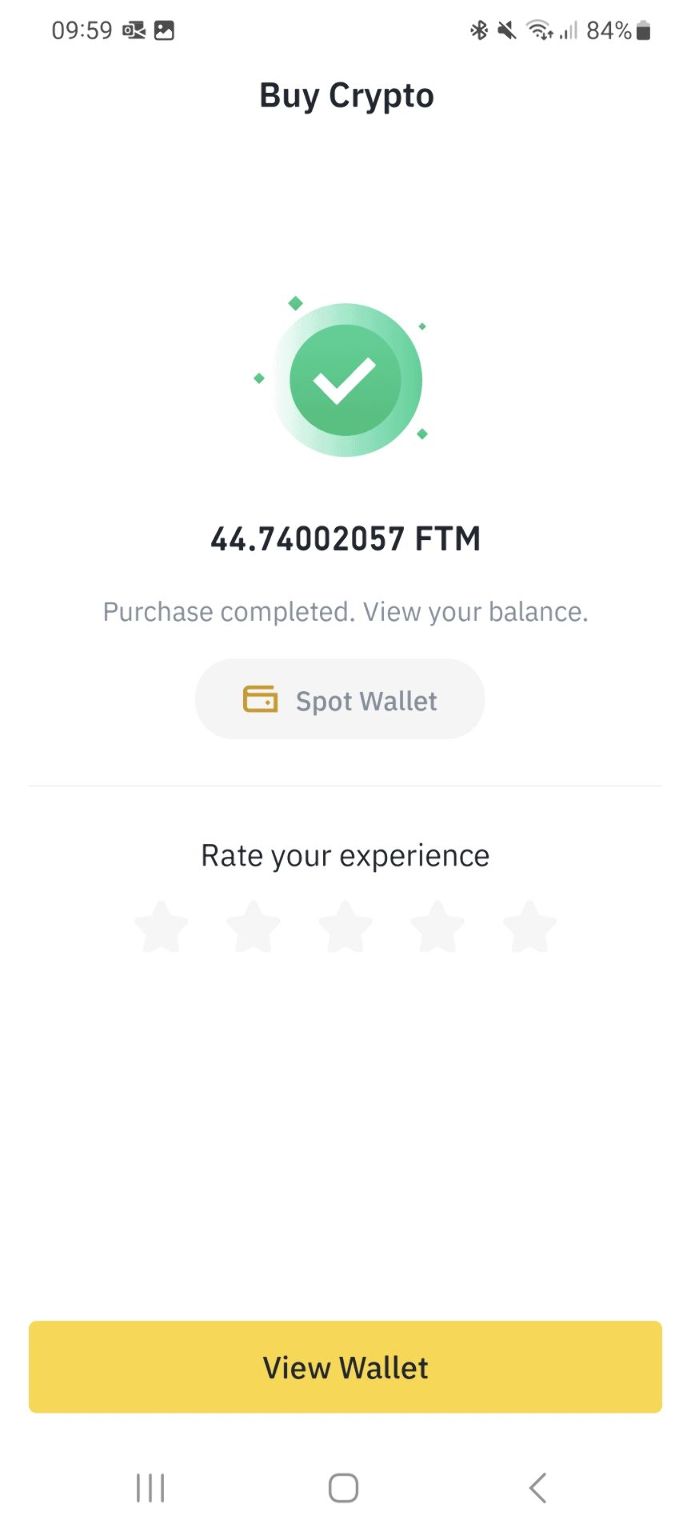 Once completed you will get confirmation. These coins/tokens are now in your Binance wallet. We just need to transfer them to your MetaMask wallet. Click "View Wallet".
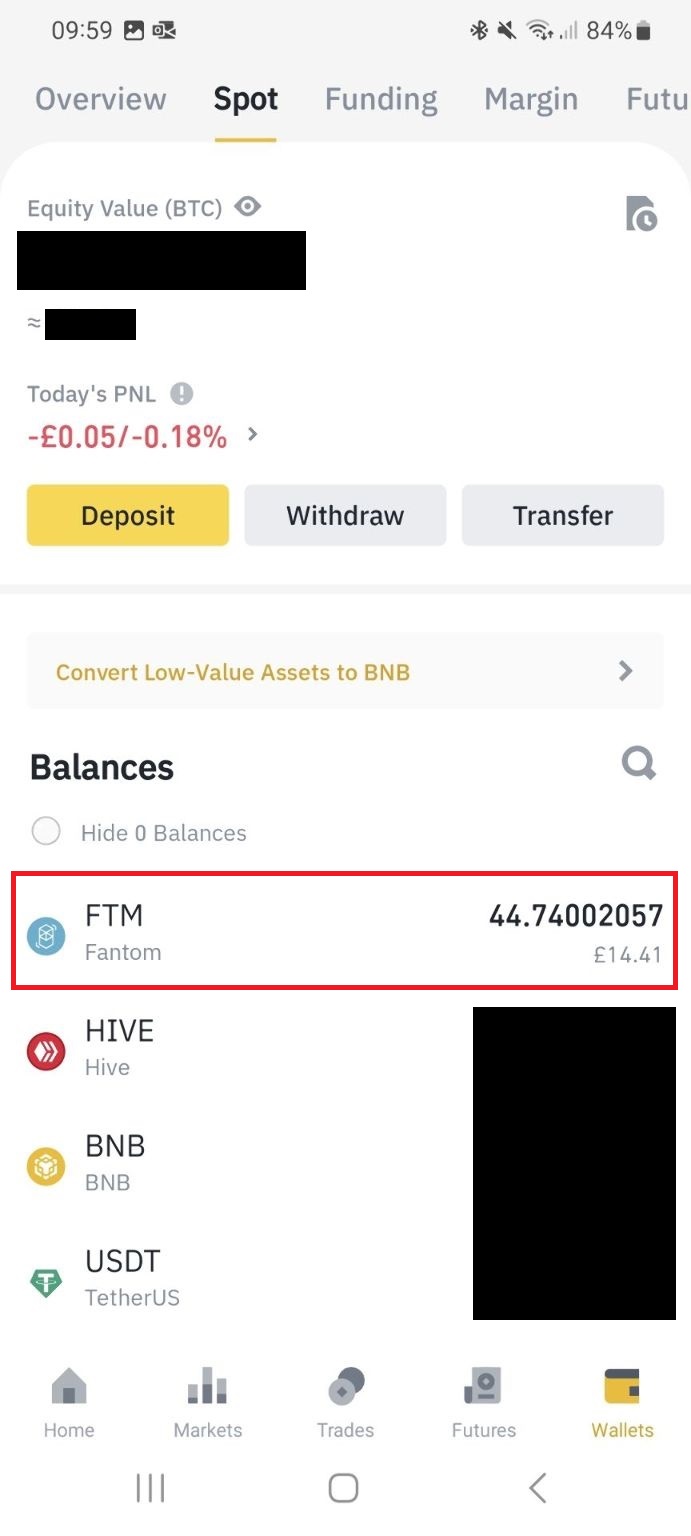 You can see the coins you just purchased in your Binance wallet. To transfer out click on the coin/token. GTM in this example.
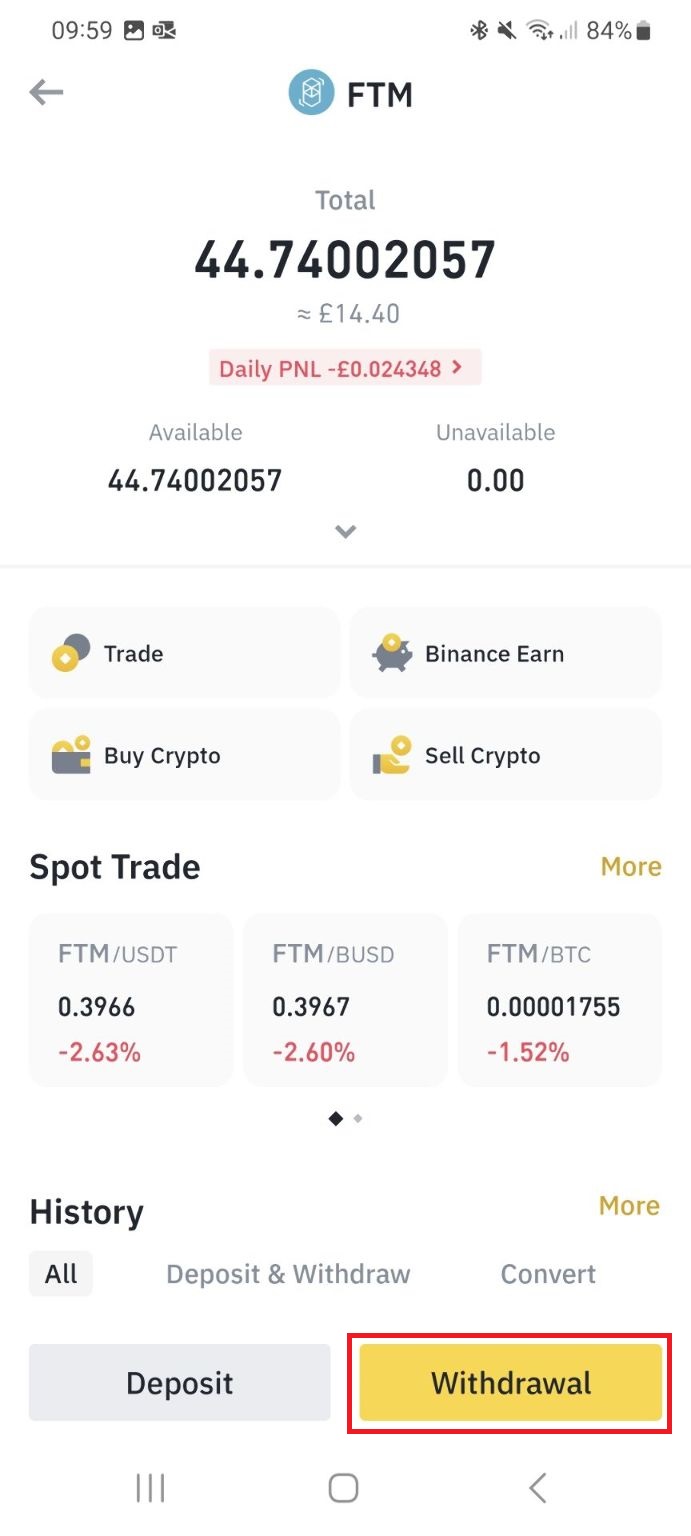 Click "Withdraw".
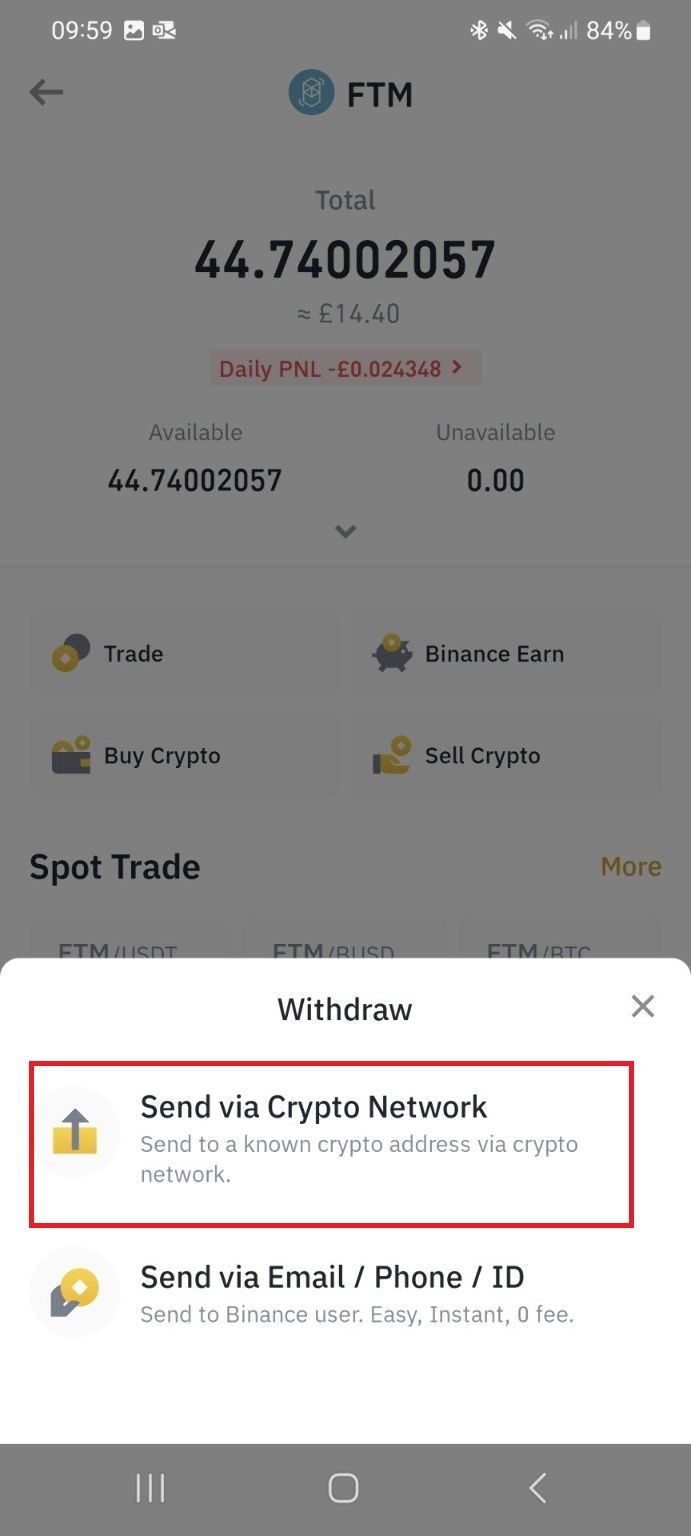 Click "Send via Crypto Network".
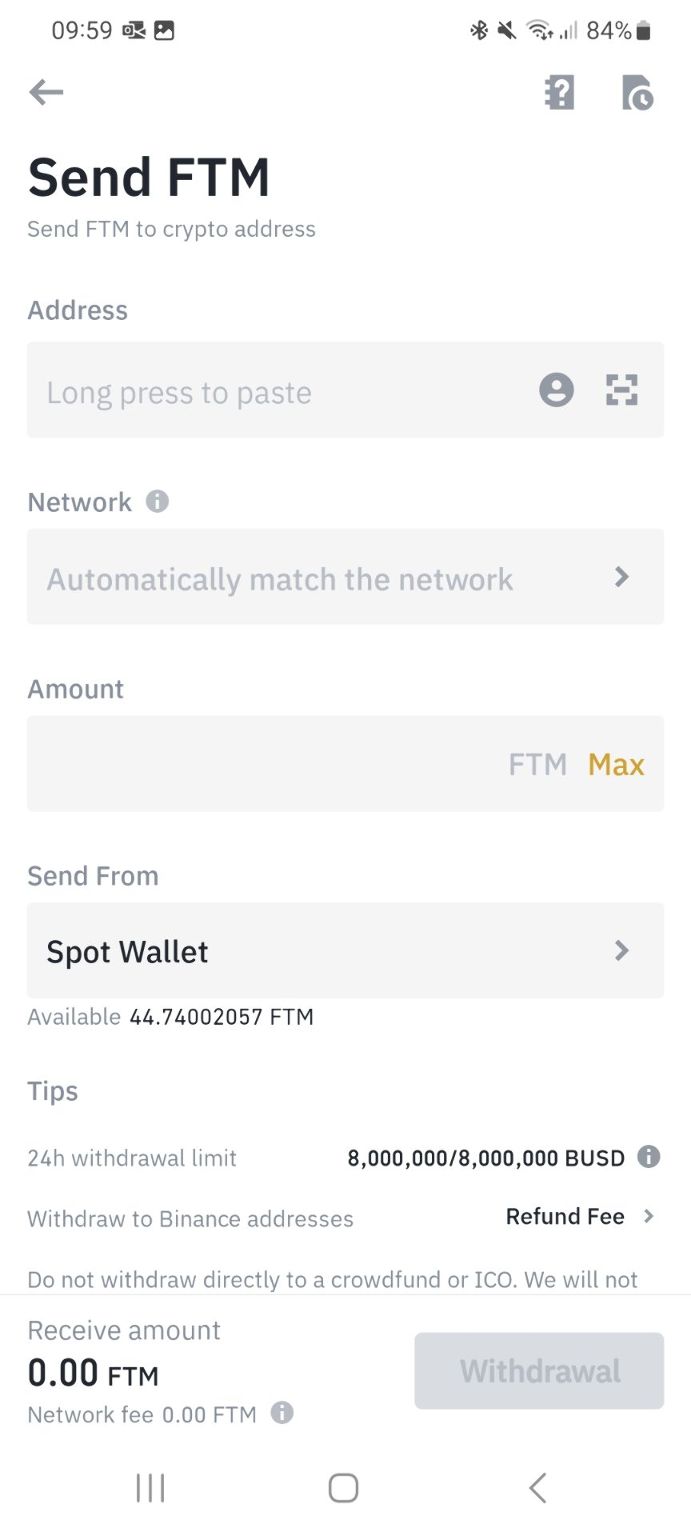 You then need to specify where you are sending, on what network, and how much.
 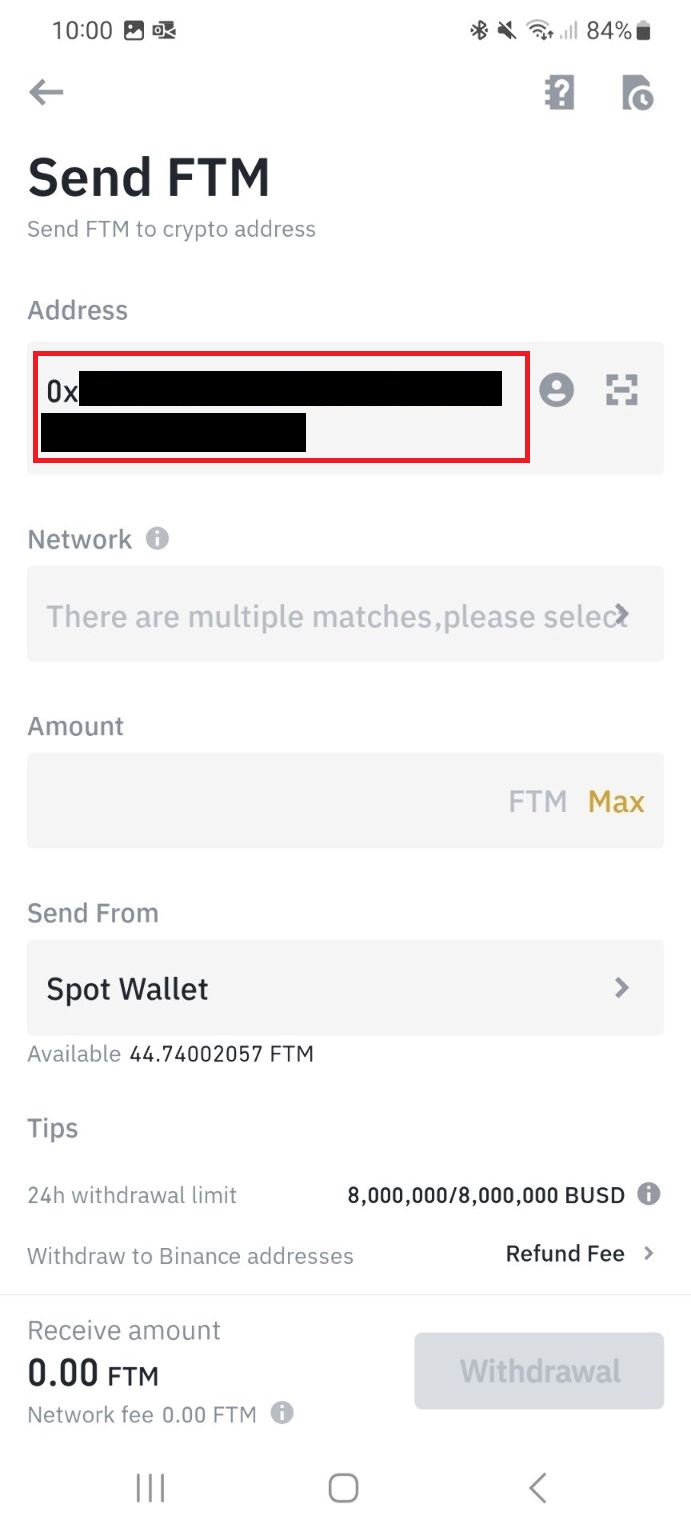 Paste in your MetaMask wallet address. IF THIS IS WRONG YOU COULD LOSE YOUR FUNDS.
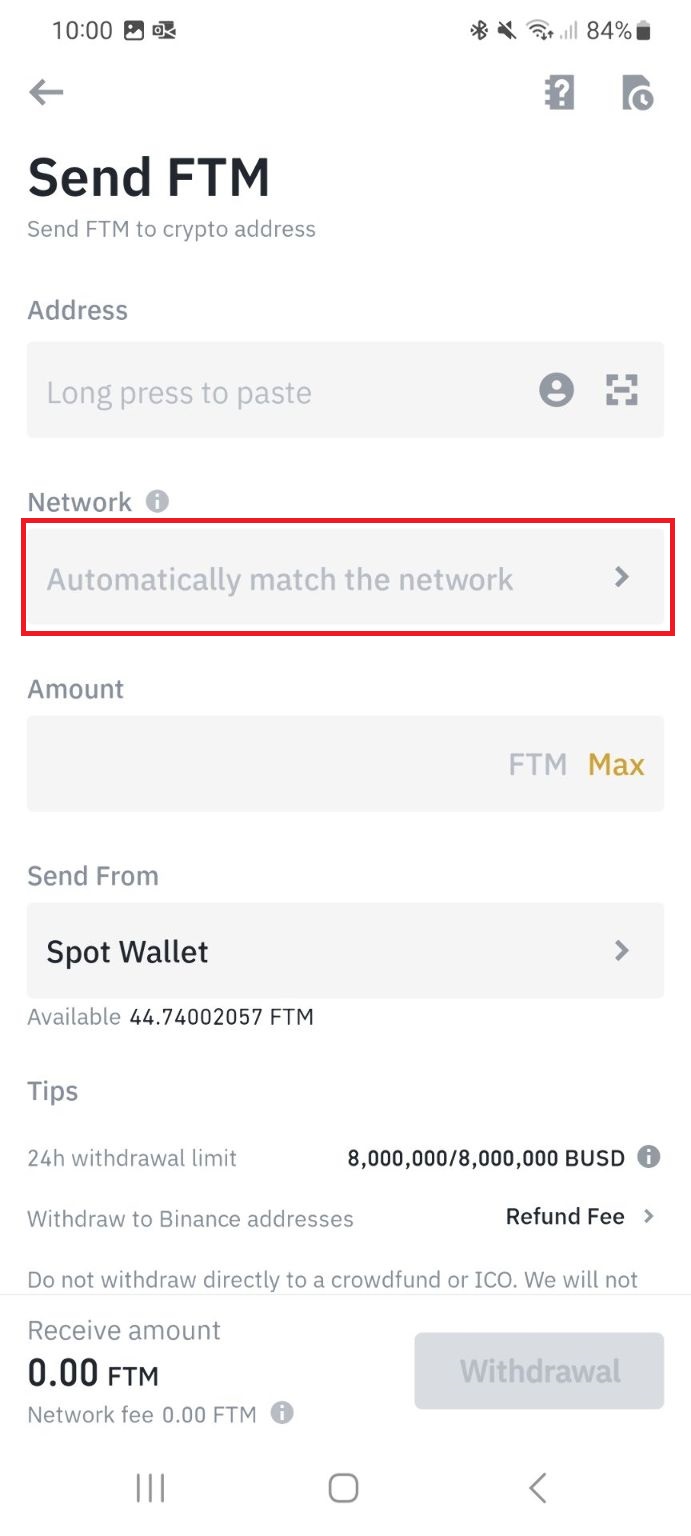 Click on the network box.
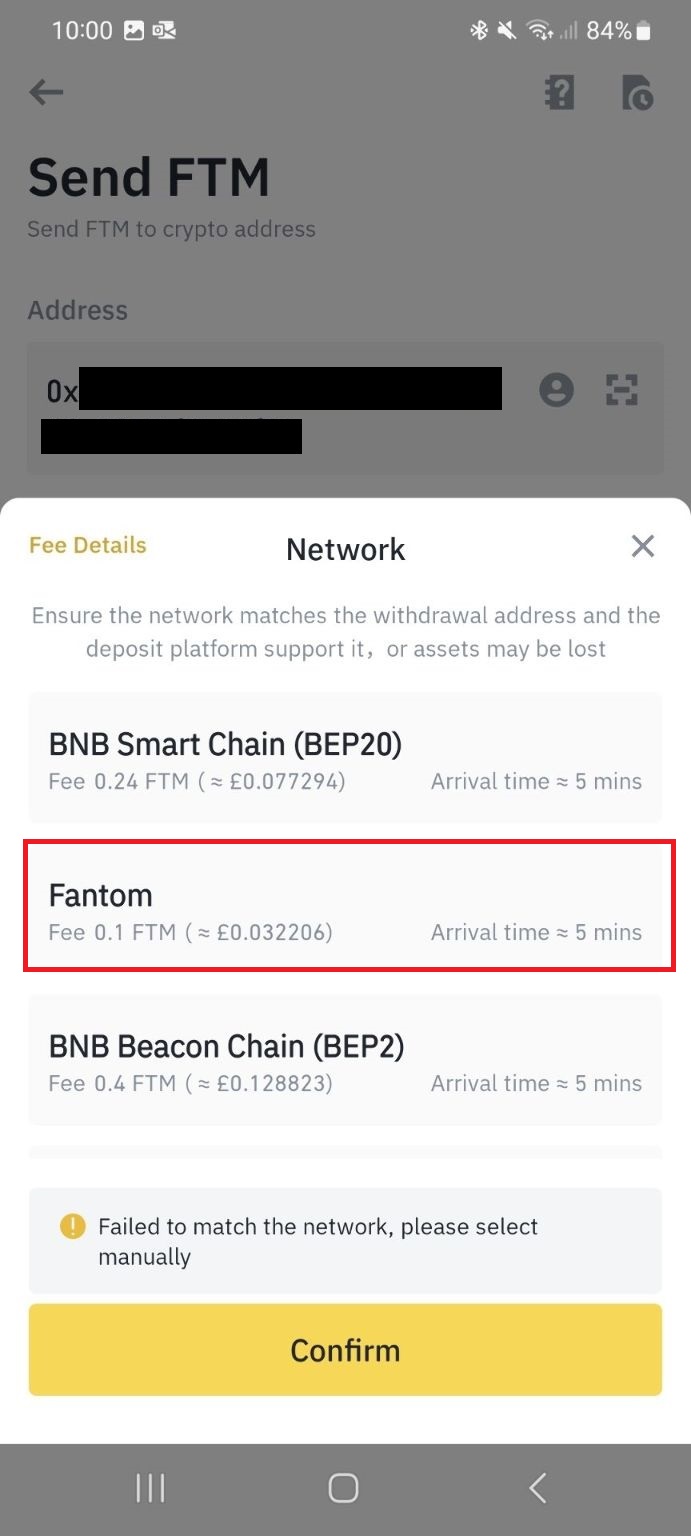 Select the network you wish to use. ITS IMPORTANT YOU GET THIS CORRECT! Sending funds on the wrong network could mean they will be potentially lost or cost you to get them back.
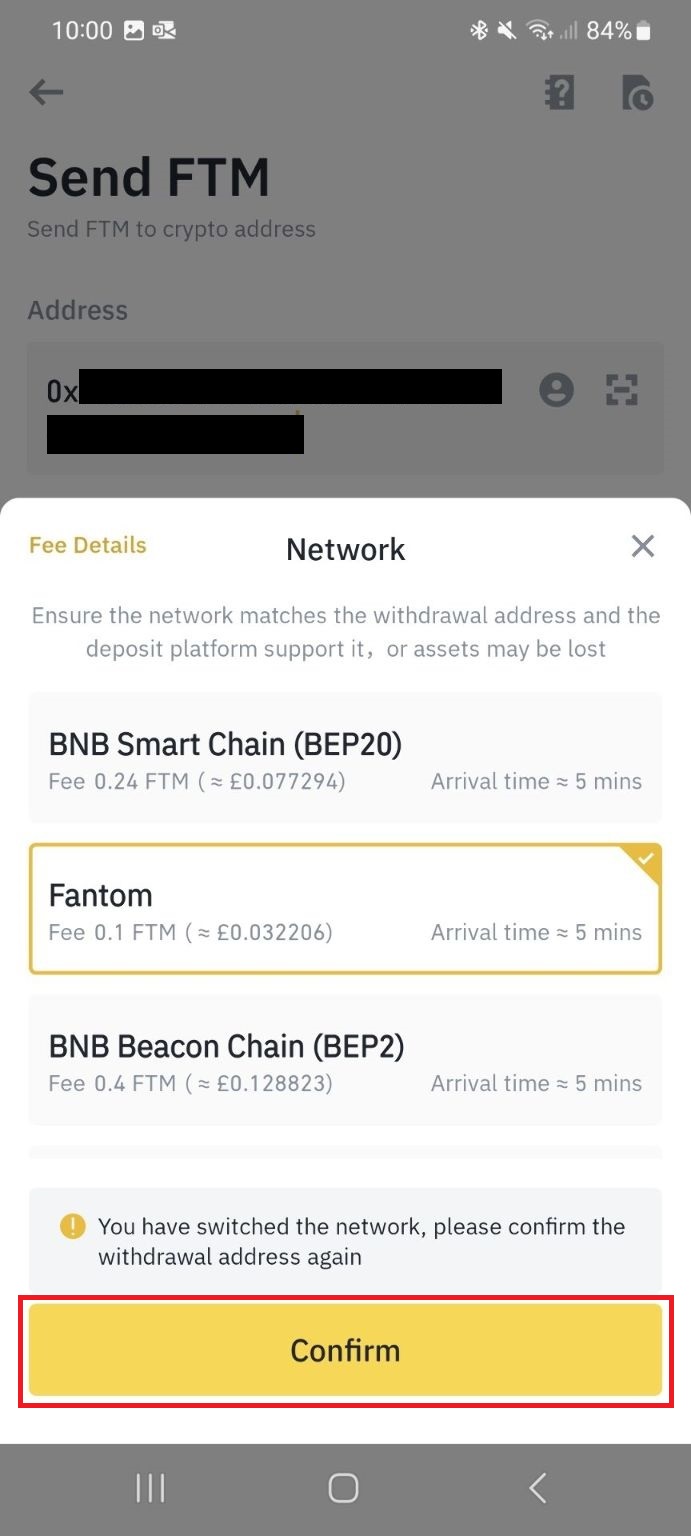 Click "Confirm".
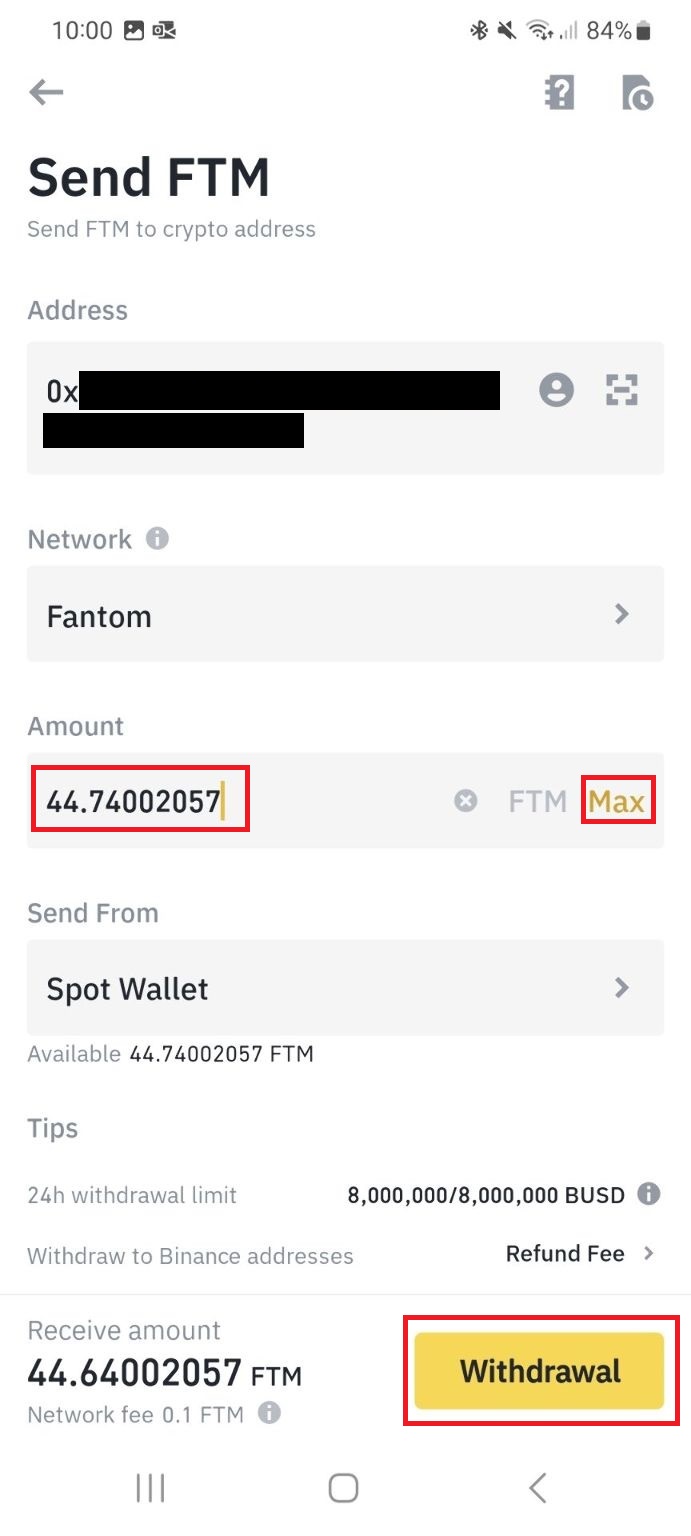 Specify the amount you wish to transfer or click "Max" to transfer all. Then click "Confirm".
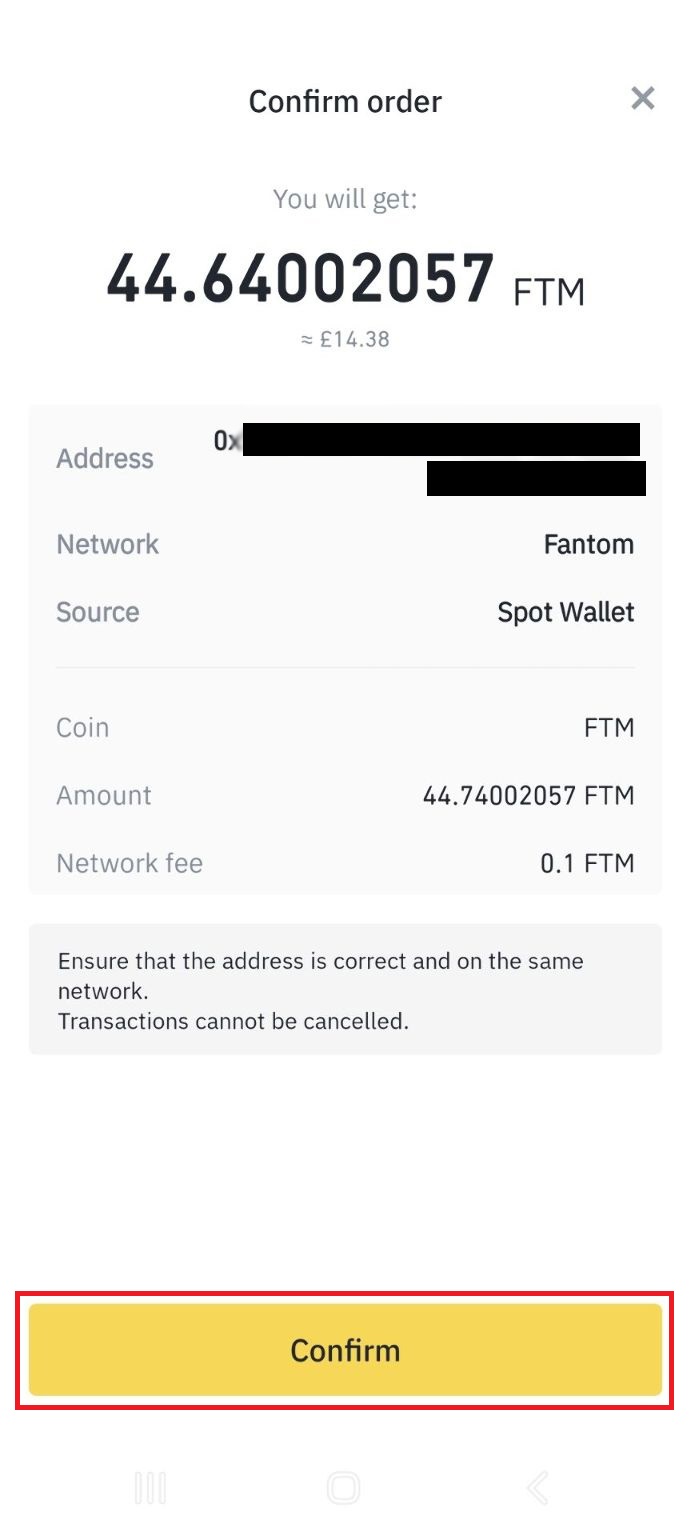 You will get a summary screen. If you are happy with all the information click "Confirm".
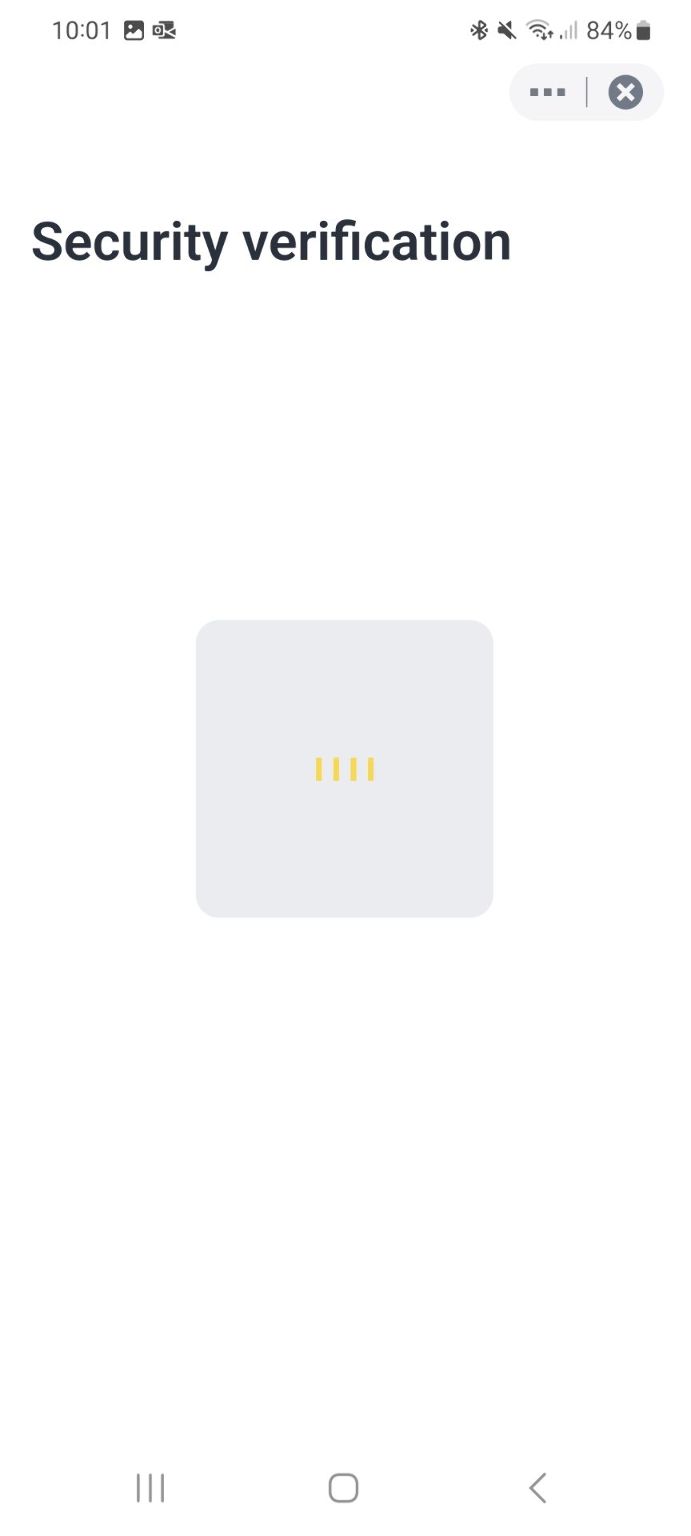 The security verification will vary depending on how you have set up your account. I could be your password or biometrics. Once this is confirmed the tokens will now transfer to your MetaMask wallet. Congratulations.
Things to consider
Different networks have different fee's and transfer times vary. You can view your transactions on Binance to see if it has transferred yet. You will also get a confirmation email once transferred.
If the transaction is confirmed but not showing in your wallet, check you are on the correct network and/or the token is added to your wallet.
Back to topBack to top